AI Workflows and Tools

Handy tools your team will love

We combine user-centered design principles with the latest AI technology to make work happen faster and easier

AI Answer Engine

Find everything faster

Ask a question about your project, get the answer immediately

• Documents, drawing details, log entries, paint colors, even untagged photos are all instantly findable

• Find specific keywords or ask project-specific questions

• Answers always link directly to the real primary sources in your project—no bullsh*t

Split View

Click a sheet detail, and it'll open in Split View. You’ll wonder how you ever reviewed drawings without it. Lock, sync, and resize any two sheets.

A screenshot showing Constructable's innovative Split View feature, where users can compare two drawing sheets side-by-side
New AI feature

Never calibrate a drawing sheet again.

Constructable automatically detects and applies the correct scale for your drawings, so you can just start measuring right away.
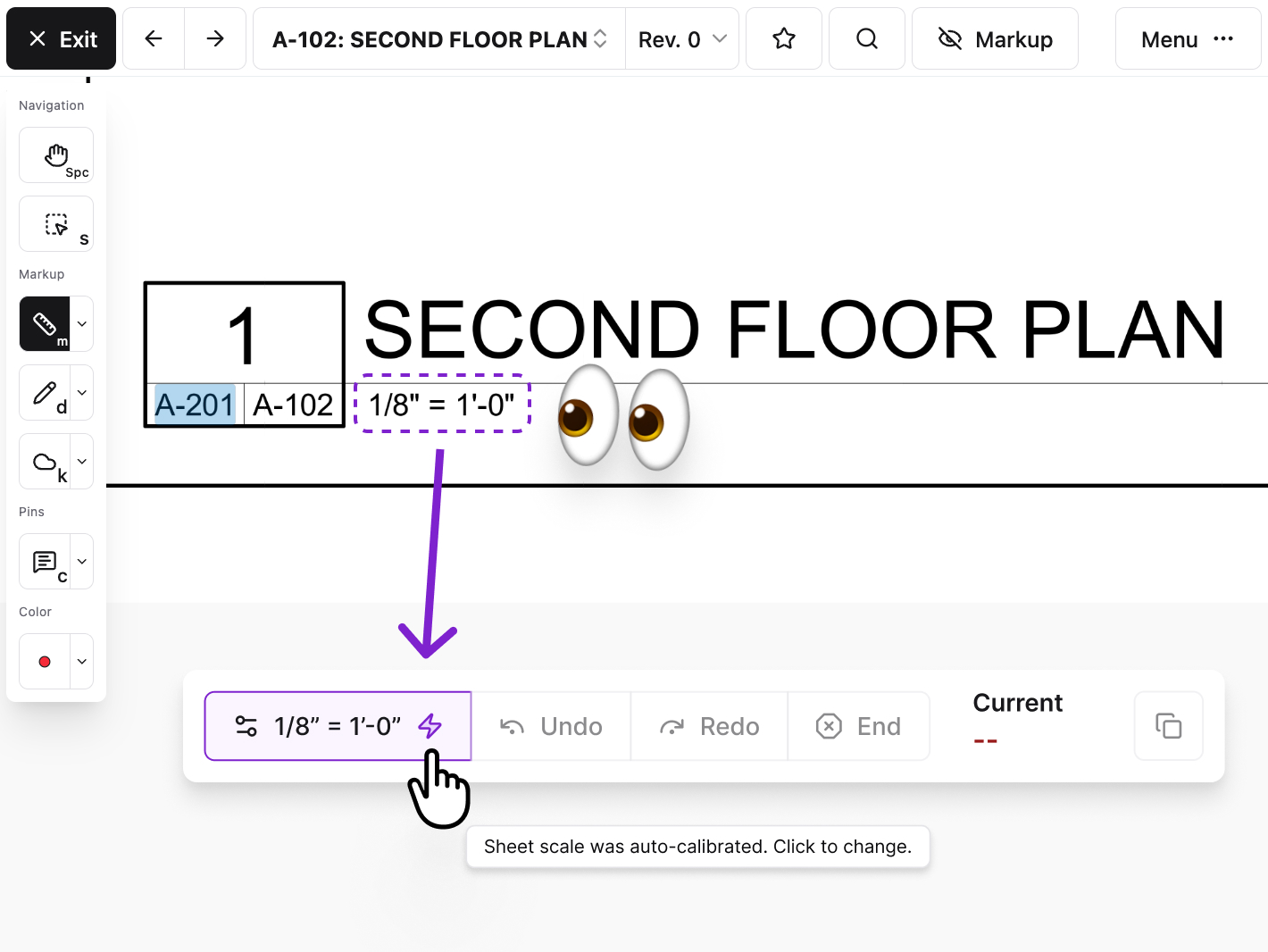
A screenshot showing Constructable's auto-calibrate feature for drawing sheets, which automatically detects and applies the correct scale, eliminating the need for manual calibration. The screenshot shows a drawing viewer with a scale indicator displaying 1/8 inch equals 1 foot and a notification indicating that the sheet scale was auto-calibrated.

Knock out your punch list with AI 🥊

Dictate the description of a deficiency
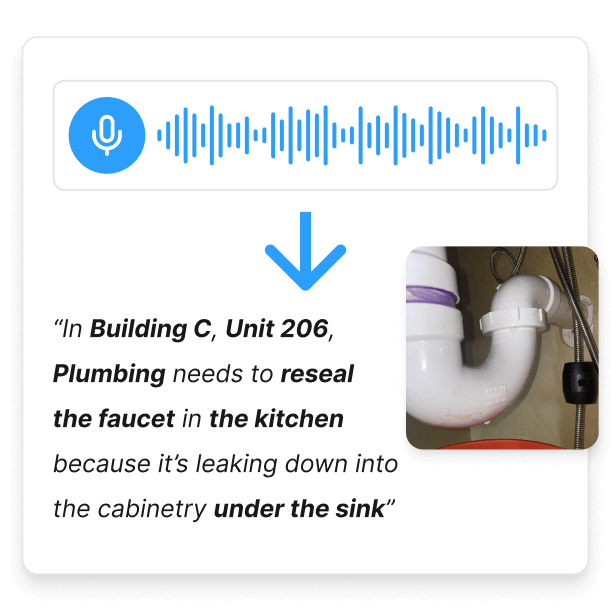
An image showing how Constructable users can dictate the description of a deficiency

Autofill all fields with just a click
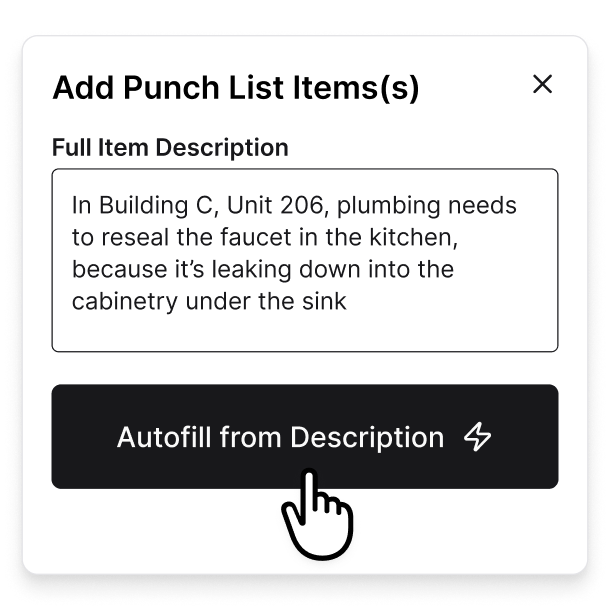
An image showing how Constructable users can autofill all of the required punch item form fields with a single click. This feature uses AI to automatically fill in the fields based on the full context of the project data, such as the appropriate assignee, trade, and location of the deficiency, saving users time and reducing errors.

Assignees get structured, accurate items
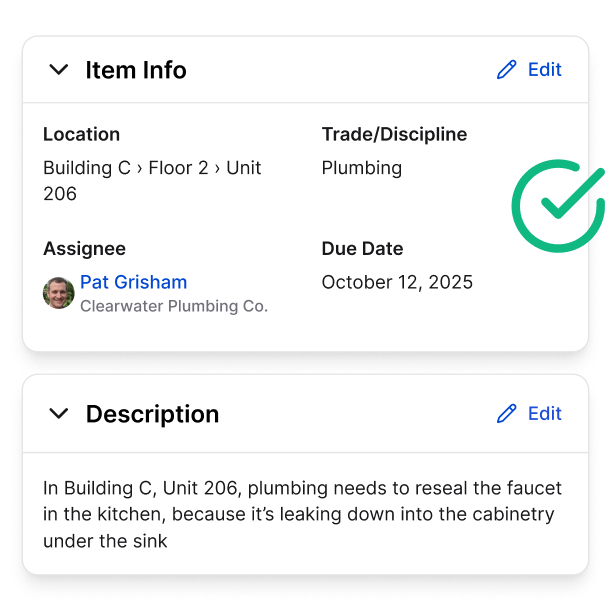
A screenshot of Constructable software showing structured, accurate data entered into the system, providing punch item assignees (like subcontractors, suppliers, or other trade partners) with all the necessary information for the work they are responsible for, giving them clear expectations and reducing confusion.

Compare sheets and revisions like never before—introducing Blend Modes

Three highly useful modes: Differences, Ghost, and Highlight. Dial them in and see what you've been missing.

Quickly extract tables and text from drawings like magic

Click-and-drag Magic Extractor around tables or text...

A screenshot of Constructable's Magic Extractor feature, where users can click-and-drag a purple selection box around a table or text on a drawing sheet to easily extract the data into a document or spreadsheet. There is a context menu that allows users to confirm that they want to extract the data. This feature uses AI to automatically extract the data and, importantly, preserve the table and text formatting of the data, saving users time and reducing errors.

...then simply paste into any document or spreadsheet

A screenshot of a Constructable user pasting the table data that was extracted by the Magic Extractor feature in the preceeding image into a spreadsheet application. The correct table data was successfully pasted in a new sheet and all the formatting was preserved, including the column headers and the alignment of the data.

Late night? Meet Dark Mode.

A customer favorite. Your eyes will thank you.
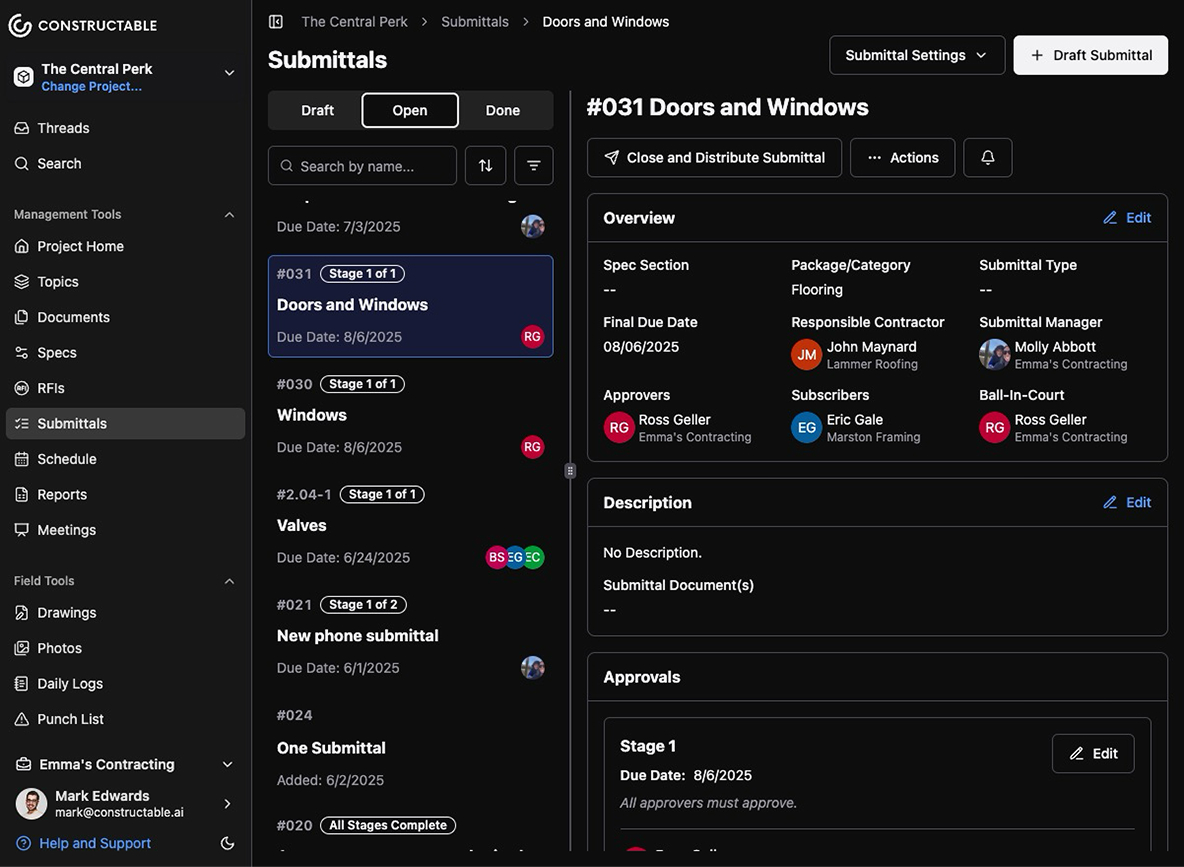
A screenshot of Constructable's Submittals feature with the Dark Mode feature toggled on in the app. Users can toggle between light and dark mode to customize their viewing experience. The screenshot shows the dark mode interface with a dark background and light text, providing a comfortable viewing experience and reducing eye strainfor users who work late at night, or who simply prefer a darker viewing experience.

◉ Record your screen and talk through complex issues right on your drawings

• Attach recordings of your screen as part of comments pinned on drawings

• Voice over and mouse movements are captured to make sharing visual ideas easier

• No more long email chains or confusing screenshots
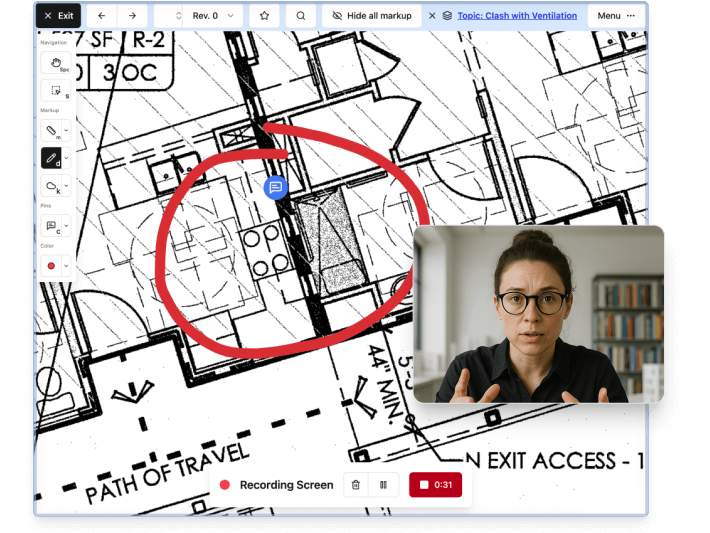
A screenshot of Constructable's drawing viewer with a user who is using the Screen Recording feature to record their screen while they add markup to the drawing and explain the issue. During the screen recording, users are able to add markups and annotations, gesture with their mouse cursor to draw attention to specific areas of the drawing, and record voice over to help further highlight specific areas of the drawing. The screen recording is saved as a video and attached to a comment which is pinned directly on the drawing sheet for easy discussion and collaboration right in context.
“Constructable synchronized the plan review process; creating topic tracking, plan markups, and an organized history in half the time. I can’t go back to our old software.
Ryan Adams, Operations Manager at Abbott|Reed

Ryan Adams

Operations Manager

Abbott|Reed logo

Create trust.
Build the future.

Let's get you building better.

Proudly backed by:
Y Combinator
Khosla Ventures
Waybury Capital

Frequently Asked Questions

Do responses from Constructable's AI Answer Engine include verifiable sources?

Yes. A key design element of Constructable’s AI search is that its answers always link back to the primary source in your project (e.g. the original document, drawing, or entry). You don’t just get a summary—you can easily view the actual underlying content it got the answer from.

Does using AI degrade accuracy or introduce “hallucinations” (i.e. wrong answers)?

No. Our proprietary approach ensures all responses are grounded in your actual project data, so answers link back to real sources (documents, logs, photos) that you can see and verify. If Constructable can’t find the answer to your question, it’ll tell you that it didn’t find anything in your project documents.

How does the AI autofill feature work when creating punch lists?

It’s really simple, you dictate the description of a deficiency, and click the “autofill from description” button. The system will then autofill all fields like the assignee, trade, location, etc. because it already has the full context of your project—so it knows who’s most likely responsible for plumbing, as an example.

What is the Magic Extractor feature?

If you want to quickly get the data from within a table or block of text shown on a drawing sheet, just select the Magic Extractor tool and click-and-drag a box around it. AI will pull out the data from within your selection, preserving all of its formatting. You can then paste it into a spreadsheet or document, saving you from having to manually retype everything. It's a great time-saver.

Do Constructable’s AI features cost extra?

No. All of Constructable AI features are included in every plan at no extra cost.

Does Constructable have a Dark Mode option?

Yes, Constructable has a Dark Mode option. You can easily toggle it on and off at any time from the main menu. It’s designed to reduce eye strain for evening work or low-light environments.

Can I view two sheets side-by-side in Constructable's drawing viewer?

Yes, Constructable's Split View feature lets you open any two drawing sheets (or revisions of the same sheet) side-by-side so you can compare or reference them easily. You can even lock the view so that as you pan or zoom on one sheet, the other sheet's view will match your movements. There is also an offset lock feature that similarly allows you to lock the views of both sheets, but preserves any initial positional or zoom differences between the sheets—this is useful when comparing two sheets that aren't the same scale or whose features are positioned differently from one sheet to another.

Can I overlay two sheets in Constructable's drawing viewer to compare them?

Yes, Constructable's drawing viewer has three Blend Modes (Differences Mode, Ghost Mode, and Highlight Mode) which allow you to overlay two drawing sheets (or revisions of the same sheet) on top of one another to quickly spot-check differences. Differences mode colors the two sheets red and blue for easy comparisons. It includes a slider so you can adjust the blend amount between the two overlapping colored sheets. Ghost mode makes the second sheet faintly visible over the first. It also has a slider that allows you to adjust the opacity of the second sheet. Highlight mode highlights areas of difference in solid white, while unchanged areas remain solid black. Each mode provides a different visual approach to comparing two sheets.
Win more work with better bids
Make better decisions with better project management tools
Less time logging, more time building