An RFI is how a question stops being a hallway conversation and becomes part of the project record. You write the question, route it to the people who can answer it, track who owes you a response, accept the answer that counts, and distribute the closed record to everyone who needs it. Start with the role that matches your work, or jump straight to the task in front of you.
Start here
- I manage RFIs: Create and open an RFI → Review and accept responses → Close and distribute.
- I answer RFIs: Find RFIs assigned to you → Respond.
- I need a formal record: Choose distribution attachments → Download a PDF.
- Something is missing or blocked: Start with Troubleshooting RFIs.
Common task recipes
- Send a new question: Select New RFI, complete the draft, assign the manager, respondents, subscribers, and due date, then select Open RFI.
- Turn an answer into the official response and finish the RFI: Find the response, select Accept and Close RFI, then choose attachments and recipients in the close-and-distribute flow.
- Turn an answer into the official response but keep working: Choose Accept Without Closing RFI from the menu beside it.
- Correct a closed RFI: Select Reopen RFI, make the permitted change, and close or distribute it again.
- Escalate overdue work: Confirm the Current Ball-In-Court, then select Send Reminder Notification.
Create and route
Create and open an RFI
Start with a Draft when you want the question and the routing right before anyone gets notified. Opening the RFI is what makes it active: it picks up its number, and respondents can start answering.
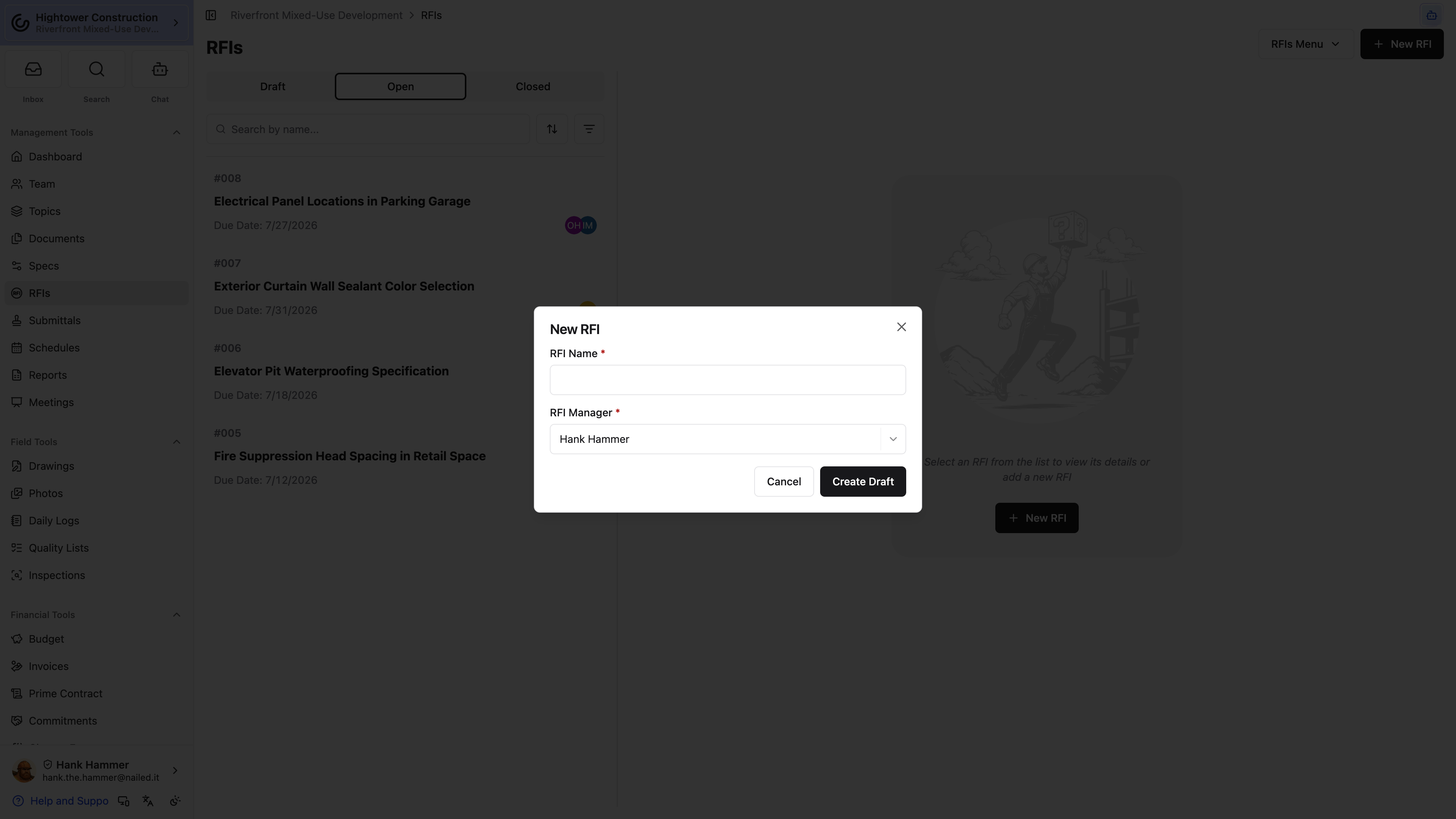
- Open RFIs.
- Select New RFI.
- Enter a clear subject and question.
- Set the manager, respondents, subscribers, and due date.
- Record cost or schedule impact when known.
- Add question attachments and drawing references as needed.
- Review the Draft.
- Select Open RFI.
- In Confirm Open RFI, select Yes, Open RFI.
Note: Opening notifies respondents and subscribers and places the ball in respondents' court. The record receives its active number at this point, so don't go looking for a number while it's still a Draft.
Pro Tip: Do the routing work while it's still a Draft. Opening notifies people immediately, so it's better for respondents to arrive at a complete question with a manager and a due date than at a half-finished one.
I don't see Open RFI. What's wrong?
The record has to be a Draft, and you need full RFI write access. Limited draft access lets you prepare your own draft but doesn't include the open-and-close workflow.
What's the difference between a respondent and a subscriber?
Respondents are the people who can answer the question, and opening the RFI puts the ball in their court. Subscribers follow the activity without being responsible for the next response.
Once it's open, the question is on the record and the answer has an owner.
Manage participants, due dates, and ball-in-court
An RFI stalls when nobody's certain whose turn it is. The participant fields and Current Ball-In-Court are where you put a name on the next action, so the question can't quietly sit for three weeks with everyone assuming somebody else has it.
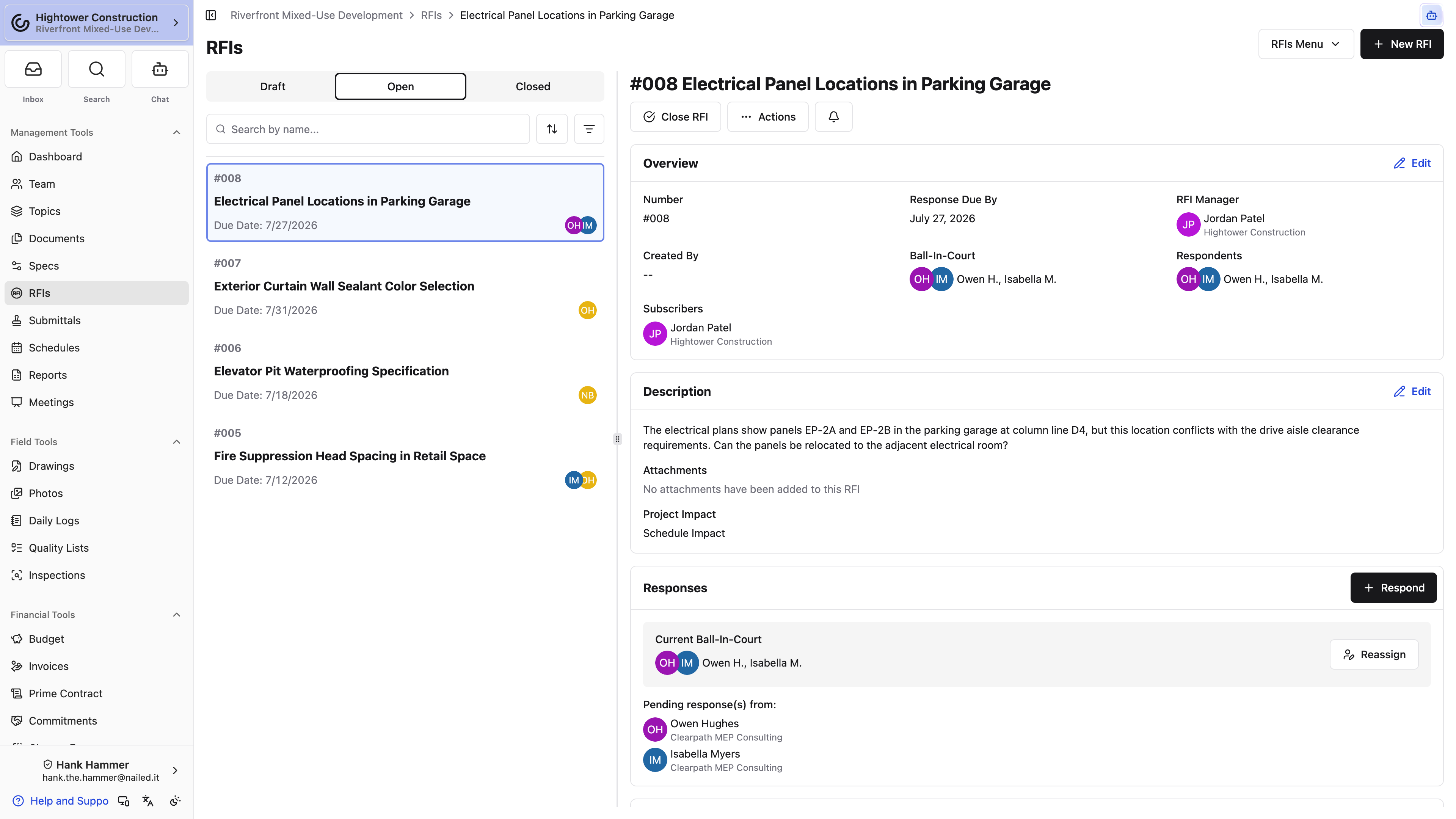
- Choose a Manager who will evaluate responses and complete the RFI.
- Choose one or more Respondents who can answer the question.
- Add Subscribers who should follow updates without being responsible for the next action.
- Use the due date for tracking; it doesn't change status on its own.
- Read Current Ball-In-Court under Responses to see who owes the next move.
- Select Reassign next to it to hand that over to someone else.
- Select Send Reminder Notification on an Open RFI to nudge whoever currently has the ball.
Note: Changing ball-in-court moves responsibility and nothing else. It doesn't accept a response and it doesn't close the RFI.
I added a respondent. Why didn't they get an email?
Adding a respondent always creates an assignment notification for them in Constructable. Whether an immediate email goes out on top of that is up to their own notification settings, and we batch immediate emails for up to fifteen minutes before sending, so one can land noticeably later than the in-app notification. If they can't reach the RFI at all, no email is sent — check their RFI access before you chase the email.
Does the due date do anything on its own?
No, it's for tracking. When a date slips past, confirm the Current Ball-In-Court and select Send Reminder Notification on the Open RFI.
Get these fields right and nobody has to ask who's holding the question.
Manage RFI attachments and drawing links
The person reading this RFI months from now won't have the context you have today. Question attachments and response attachments keep the evidence on the record, and they're exactly what you'll choose from when you build the distribution package.
Add question attachments when recipients need more context to understand what you're asking. The two kinds of attachment live in different places: response attachments stay with the individual response, while question attachments stay with the RFI. When you close the RFI, you can choose from both sets for the distribution package.
RFIs can also be connected to drawing locations. A drawing link gives someone the context of where the question lives, but it isn't a substitute for the RFI's own attachments, and it doesn't bypass permission checks on the linked record.
Note: Only attachments from that RFI can be selected for distribution. If a file matters to the closeout package, it needs to be on this record.
Pro Tip: When a formal package matters, verify the marked-up sheet and the selected files before you download or distribute. It's much easier than reissuing a package that went out missing a sheet.
What's the difference between a question attachment and a response attachment?
Question attachments belong to the RFI itself and support the question you're asking. Response attachments belong to the individual response that carries them. At close, you can pull from both sets.
Can I include a file from a different RFI in the package?
No. Only attachments from that RFI can be selected.
Do this and the closed record explains itself without anyone hunting for the file that proves it.
Respond and complete
Find and track RFIs
Whether you're chasing an answer or checking whether one landed, start on the RFIs page and narrow from there. Once you're on the record, a handful of fields tell you where it stands and who owes the next move.
Open RFIs, then use the status views, search, and table or panel view to narrow the list.
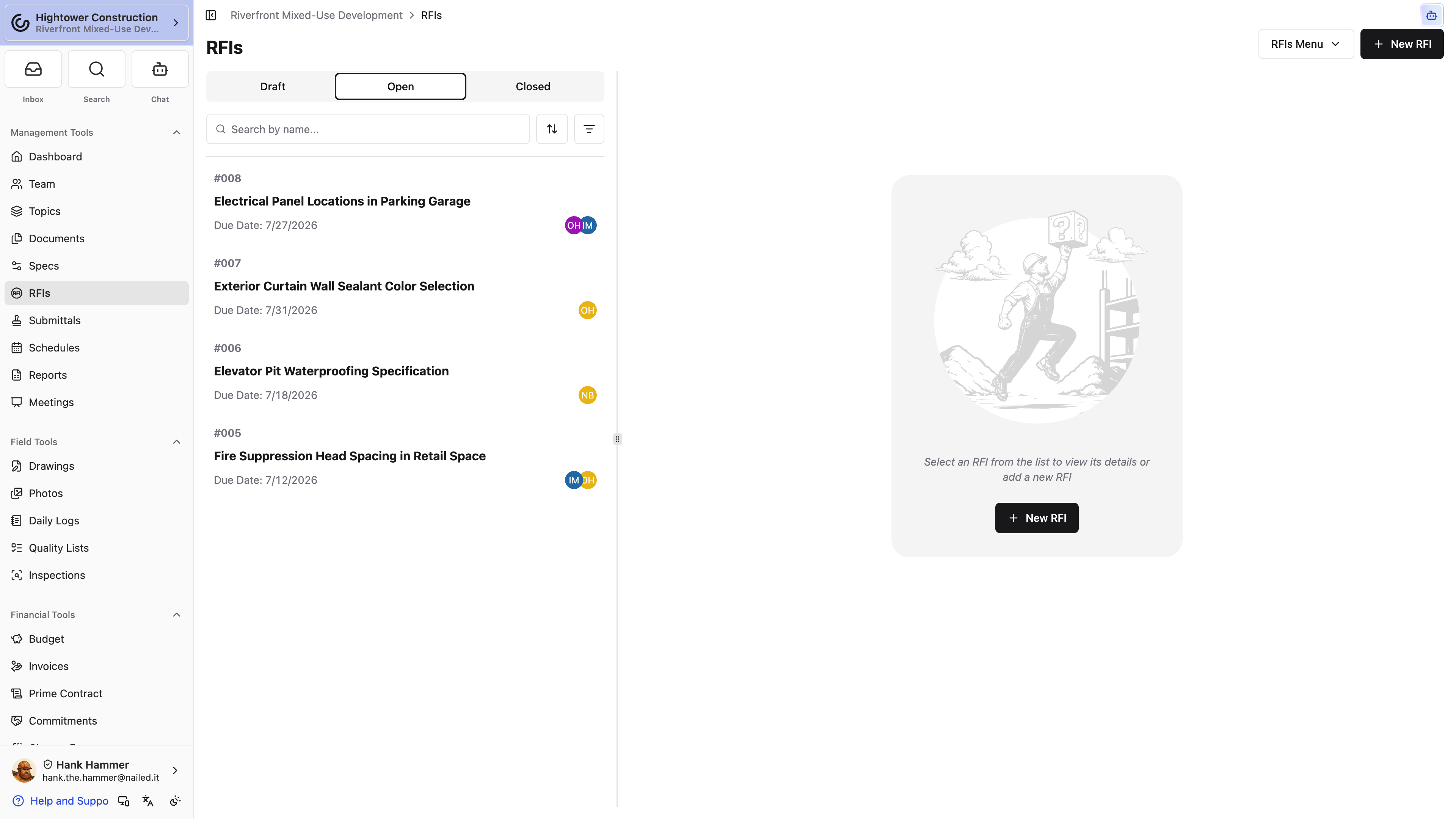
Once you find the record, review:
- Status and due date
- Manager, respondents, and subscribers
- Current Ball-In-Court
- Pending respondents
- Response and activity history
Pro Tip: Need to look across projects rather than inside one? Organization reports include an All RFIs view. It shows you only the RFIs you could already open project by project, so the totals there won't match a colleague's if your access differs.
An RFI I know exists isn't in the list. Where is it?
Start with the obvious: confirm you're in the intended project and that a status view or search isn't hiding it. If it still doesn't appear, ask an administrator to check View RFIs and its access level. Drafts are the common surprise — with restricted access you only see drafts your own company created.
Between the status views and the ball-in-court field, you can tell at a glance which RFIs are waiting on you.
Respond to an RFI
Respond when you have enough information to answer the question or provide the next piece of project direction. Your response and any supporting files become part of the RFI's history, so write it for whoever reads it later.
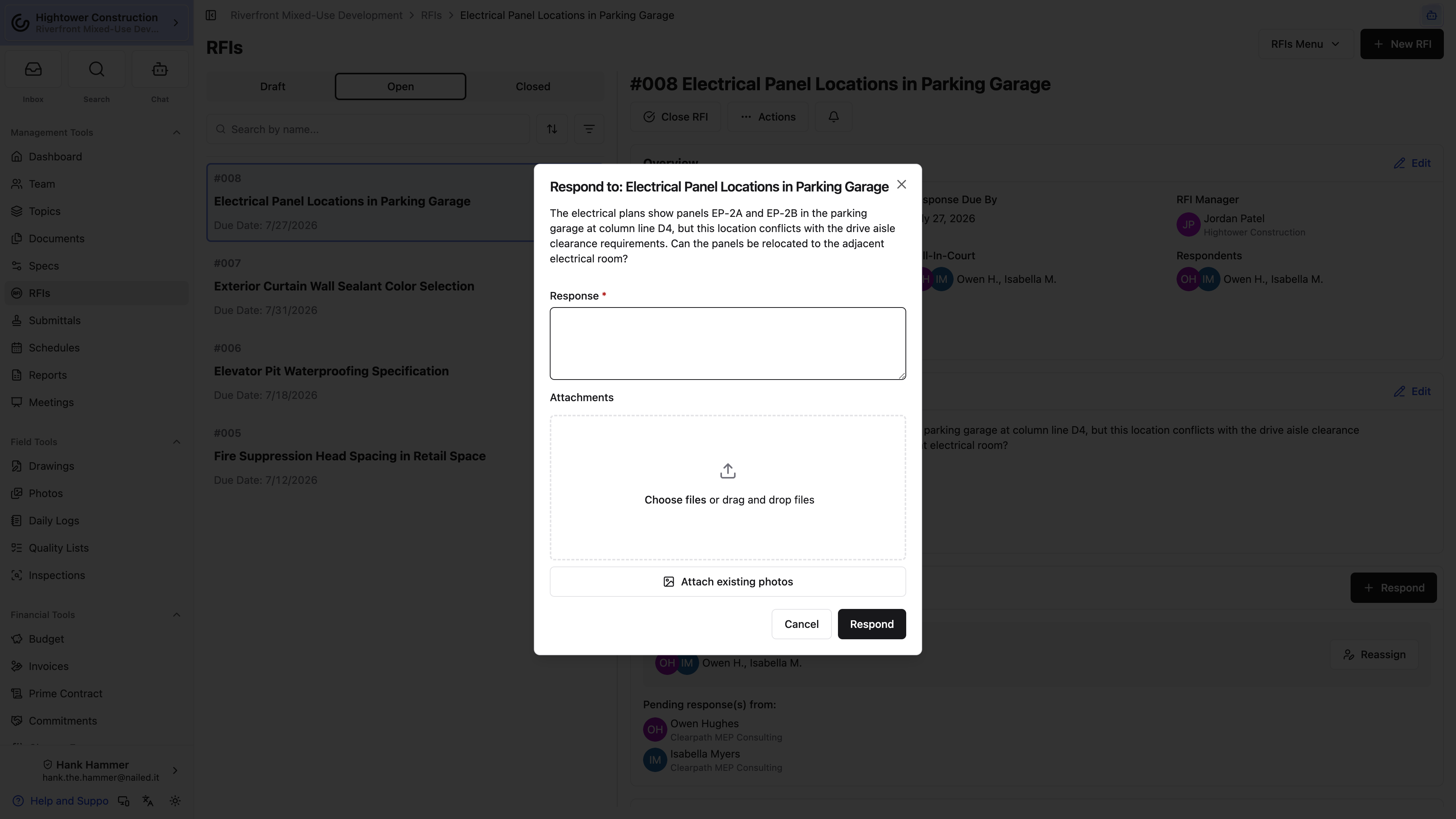
- Open the RFI.
- Review the question, impacts, due date, and attachments.
- In Responses, select Respond.
- Enter the response and add supporting attachments.
- Submit the response.
Note: You can edit or delete your own response while it's unaccepted, the RFI is still Open, and you still have response access. After a response is accepted or the RFI closes, a correction means coordinating a reopen — which is deliberate, because it keeps the original answer visible in the project history.
Why can't I see Respond?
The RFI has to be Open or otherwise respondable, and you need Respond to RFIs. Responses can't be added to a Closed or Cancelled RFI.
I answered the wrong question. Can I take it back?
While the RFI is Open and your response hasn't been accepted, yes — edit or delete it yourself. Once it's accepted or the RFI has closed, ask the manager to reopen it rather than trying to erase the original answer.
Submit it and the project has your answer in writing, attached to the question that prompted it.
Review and accept responses
When an answer comes back you have two decisions to make, and they're separate: is this the official answer, and is the question finished? Constructable gives you a button for each combination.
- Select Accept and Close RFI to mark it Official Response and go straight on to close and distribution. This is the normal path when the answer settles it.
- Open the adjacent menu and select Accept Without Closing RFI when the answer is right but the team still has coordination to finish.
- While the RFI remains Open, use Mark as not official response to take the acceptance back.
Only one response can be the Official Response. Several people may weigh in and every reply stays on the record, but the one you accept is the answer the field builds to and the one that shows up in the closeout package.
Note: Accepting a response doesn't send a distribution email by itself. If people outside the RFI need the answer, that happens in the close-and-distribute flow.
I accepted the wrong response. Can I undo it?
Yes, as long as the RFI is still Open. Use Mark as not official response, then accept the right one.
Why is Accept and Close RFI missing?
The response must not already be official, the RFI must be Open, and you need Accept a response to an RFI. Closing and distribution also require RFI write access, so you may be able to accept without being able to close.
Accept the right answer and the project has a single, findable statement of direction.
Close and distribute an RFI
Close the RFI when the question has been resolved and you're ready to preserve the final record. The distribution steps let you choose exactly which attachments are included and exactly who receives them.
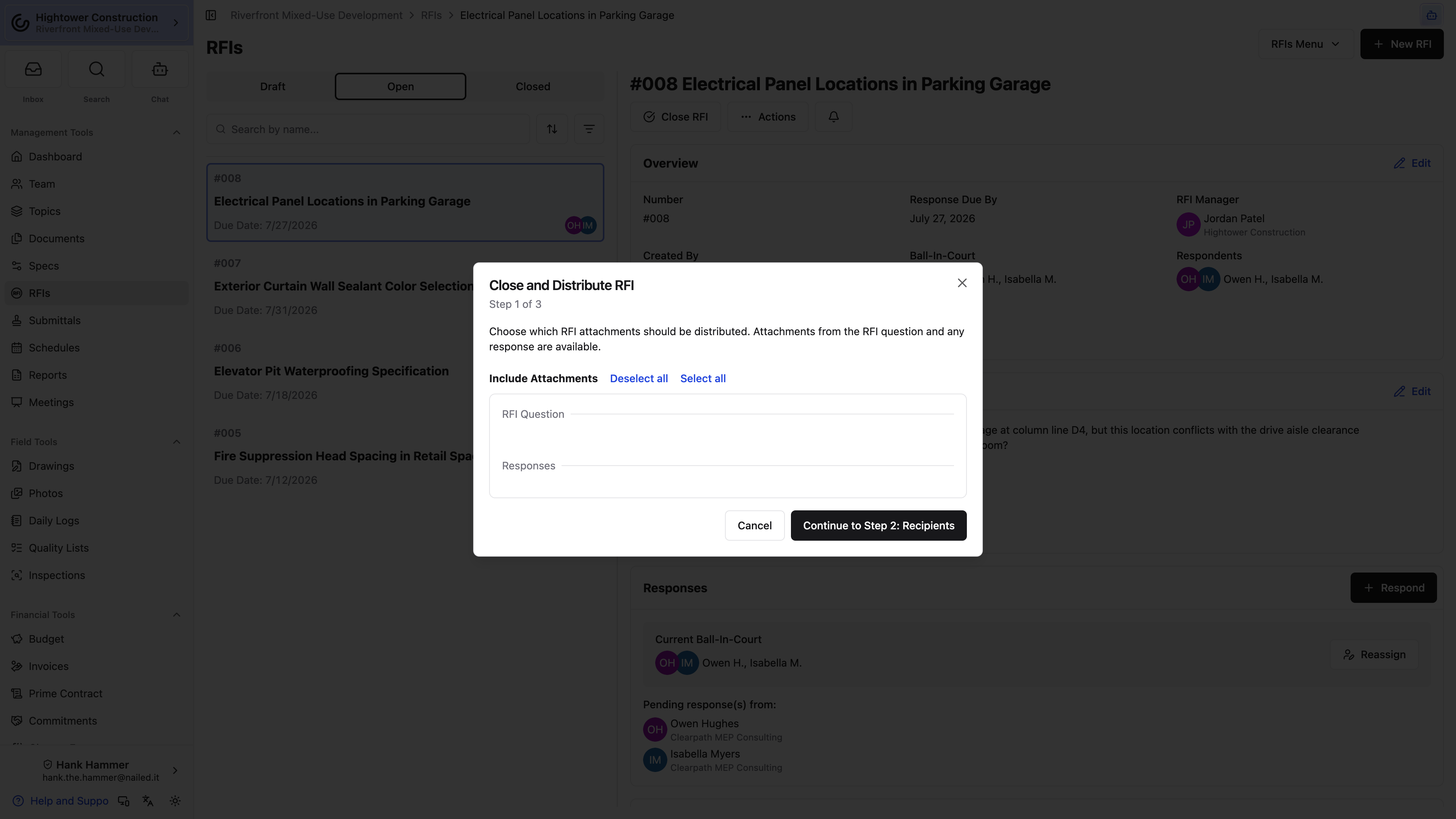
- Select Close RFI. The dialog that opens is titled Close and Distribute RFI.
- Choose the question and response attachments to distribute.
- Select Continue to Step 2: Recipients.
- Review recipients. We preselect every subscriber and respondent from outside your organization, since they're the people who usually need the answer in writing. Add or remove anyone.
- Select Continue to Step 3: Review.
- Keep Send email selected to edit the subject, body, and attachments, or clear it to close without sending anything.
- Select Close and Distribute RFI.
Closing changes the status to Closed, clears ball-in-court, and records the distribution. Later, use Distribute RFI or Redistribute RFI to issue a package again.
Note: With Send email selected, you need at least one recipient, plus a subject, a message with text in it, and the RFI link merge field. If the flow won't let you continue, that's usually one of those four.
Can I close an RFI without emailing anyone?
Yes. Clear Send email on the review step. The RFI still closes and the distribution is still recorded — you just don't send the message.
If I redistribute later, does the close date change?
No. Redistributing a closed RFI creates a new distribution record without changing the original closed time.
Close it this way and the question, the accepted answer, and the package you sent all sit in one defensible record.
Reopen, change status, or delete
Sometimes a closed RFI turns out to need a correction, or a draft was created by mistake. You can reopen, move a record between statuses, rename it, or delete it — and only one of those is a one-way door.
- Reopen RFI returns a Closed RFI to Open.
- Move to Draft, Move to Open, and Move to Closed change the status directly, and you can move freely between those three. Moving to Draft strips the active number. When work genuinely needs to resume on a Closed RFI, Reopen RFI says so more clearly than Move to Open.
- Rename RFI changes the subject while the record is editable.
- Delete RFI is the one-way door. Read on before you use it.
What deleting an RFI actually does
The menu says delete and the confirmation says "This action cannot be undone," which is true, but it doesn't quite describe what happens. Nothing is erased. The RFI's status changes to Cancelled, its number is stripped away, and the record drops out of the Draft, Open, and Closed views — but the question, every response, and the full activity history are all still there under the Cancelled status, where anyone with RFI access can read them.
What you can't do is bring it back. Move to Draft, Move to Open, and Move to Closed all disappear once an RFI is Cancelled, and no one — including an administrator — can return it to the active workflow. If that RFI recorded direction the project relied on, you now have a permanent record you can't reopen and can't correct.
So the practical rule is: delete drafts nobody needed, and reopen anything else. Draft and active RFIs use separate delete permissions for exactly this reason, so being able to clear your own drafts doesn't mean you can delete an active RFI.
Pro Tip: When a Closed RFI documents project direction, reopen and correct it. The correction stays visible in the history, which is what makes the record worth having.
Should I use Reopen RFI or Move to Open?
Both put a closed record back into Open. Reopen RFI is the clearer choice when work genuinely needs to resume, because the intent is obvious to everyone reading the record later.
I deleted an RFI by mistake. Can I get it back?
Not through Constructable. Its status is Cancelled and there's no path back to Draft, Open, or Closed. You can still read everything on it — filter the RFIs page by Cancelled — but if the question still needs answering, open a new RFI and reference the old one in the question.
Handled this way, corrections stay visible instead of leaving a gap where an answer used to be.
Share and report
Download and report on RFIs
When someone needs an RFI outside the record itself — an owner, a designer, a closeout binder — you have a few ways to hand it over. Choose based on whether the reader can sign in and whether they need one RFI or the whole register.
- Download PDF builds a PDF of the single RFI, with options for what to include. Right for an owner or a designer who can't sign in.
- Copy Link hands you an in-app URL. Right for a colleague who already has project access.
- The project RFI report gives you a filtered register for this project. Right for a status meeting.
- All RFIs does the same across every project in the organization. Right for portfolio review.
- Export RFIs, in the settings menu on the RFIs page header, builds a ZIP of the whole register through Closeout. Right when someone wants every RFI as files rather than a table. It needs Generate closeout packages, and the finished archive lands on the project's Closeout page.
- Closeout packages pull RFIs in automatically alongside everything else. Right at the end of the job, and nothing you have to do here.
Note: Sharing a link doesn't grant access. If the person on the other end can't already open the RFI, the link won't change that — they need access on the project.
Note: A generated PDF captures the RFI at that moment. If the RFI or its selected attachments change afterward, the file you're holding is out of date. Download it again.
My PDF is missing something I expected to see. Why?
Generate a new PDF after any change, then check the download options and the attachments you selected. Drawing markup and linked-topic content can also depend on your own access to the linked records, so a colleague's PDF may not look identical to yours.
What's the difference between the project RFI report and All RFIs?
The project report covers one project. All RFIs covers every project in the organization, and it still only shows you RFIs you already have access to, so two people can open the same report and see different totals.
Pick the right one and the people who need the answer get it in a form they can actually open.
Using RFIs on drawings, in meetings, and on mobile
RFI questions rarely come up on the RFIs page. They come up standing at a sheet, sitting in a coordination meeting, or out in the field on a phone. Here's how RFIs show up in each of those places.
On a drawing, an RFI pin puts the question at the exact spot on the sheet it's about. Select the pin and you can read the question, follow the responses, or open the full RFI — all of which needs RFI access, not just drawing access.
In a meeting, add the smart Open RFIs section to your agenda and it fills itself in, picking up open and newly opened RFIs right up until the meeting is finished. The agenda reflects what's still unanswered at the moment you walk into the room instead of what was unanswered when somebody built it last Tuesday.
Note: Starting the meeting drops already-closed items out of that agenda copy. Only the agenda changes — the source RFI is untouched.
On a phone, you get the core RFI actions on both mobile web and the native app, folded into menus to fit the screen. Save detailed attachment selection, multi-record reporting, and document-control review for desktop web.
For the drawing-viewer workflow, see Creating and viewing RFIs from drawings.
Can I do everything from my phone?
The core actions are there on both web and native, just folded into menus on smaller screens. Save detailed attachment selection, multi-record reporting, and document-control review for desktop web.
Will an RFI opened after the agenda was built still show up?
Yes. The smart Open RFIs section keeps adding open and newly opened RFIs until the meeting is finished.
Work this way and the RFI meets people where the question came up instead of making them go find it.
Troubleshooting
Troubleshoot RFIs
Most RFI problems come down to one of three things: a package or permission you don't have, a status that blocks the action you're looking for, or a PDF generated before the change you're expecting to see. Find your symptom and work through the checks in order.
RFIs or an RFI are missing
- Confirm the organization has the Project Management package.
- Confirm you are in the intended project.
- Ask an administrator to check View RFIs and its access level.
- For a Draft, confirm your company created it or request full read access.
- If somebody deleted it, filter the RFIs page by the Cancelled status — deleted RFIs are still there, just without their numbers.
Open RFI is missing
The record has to be a Draft, and you need full RFI write access. Limited draft access lets a creator prepare a draft but doesn't grant the full open-and-close workflow.
Respond is missing
Confirm the RFI is Open or otherwise respondable and that you have Respond to RFIs. Responses can't be added to Closed or Cancelled RFIs.
Accept and Close RFI is missing
The response must not already be official, the RFI must be Open, and you need Accept a response to an RFI. Closing and distribution also require RFI write access.
Distribution cannot continue
When Send email is selected, choose at least one recipient and keep a subject, a message with text, and the RFI link merge field. Clear Send email only when you want to record the distribution without sending an email.
A PDF does not show expected material
Generate a new PDF after changes. Review the download options and selected attachments. Drawing markup and linked-topic content can also depend on your access to the linked records.