Use this guide to upload, review, publish, find, compare, mark up, connect, download, and troubleshoot drawings. It covers exact controls, revision handling, notifications, desktop and native behavior, offline storage, and exports.
Learn how processing, revisions, sheet links, and pinned workflows fit together in Connected Drawings.
Start here
Pick the path that matches your job. You don't need to read every article in order.
- I manage drawing releases: Understand the lifecycle → Upload a set → Review it → Publish it → See what changed
- I review and coordinate plans: Navigate the viewer → Choose a comparison method → Add markup → Save it to a Topic
- I use drawings in the field: Find current drawings → Use drawings on mobile → Prepare sheets for offline use
- I estimate from drawings: Calibrate and measure → Create and export takeoffs
- I need a numbered detail, not a sheet: Finding a detail with the Details tab.
- Something is missing or not working: Start with Troubleshooting drawings.
Common task recipes
- Publish an addendum or bulletin: Upload it as a new drawing set in the existing drawing area, confirm the sheet identities, and publish the approved pages. See Uploading and managing a drawing set.
- See what changed in a published revision: After publishing, open Viewing revision changes from the drawing set.
- Find out why a sheet is missing: Follow Where is my drawing? before changing permissions or uploading the file again.
- Compare two revisions: Use Choose the right comparison method.
- Prepare for a site walk: Star the sheets you use most, store the latest revisions in the native app, and test them before you leave reliable connectivity. See Using drawings on a phone or tablet.
- Send plans outside Constructable: Use Choose the right download or share option.
Understand the drawing workflow
Understand how Drawings works
Drawings travel one path, from the PDF that lands in your inbox to the sheet your crew opens in the field. Once that path is clear, most of what you see on the Drawings page — and most of what goes wrong — explains itself.
Upload a set → we split it into sheets → you confirm each sheet's number → you publish → the field sees it
- A drawing area holds one plan set with its own index and its own revision history. Almost every project needs exactly one.
- A drawing set is one upload package, such as an issuance, addendum, or bulletin.
- A sheet is one page extracted from that upload.
- Confirming verifies the sheet number, title, date, and discipline. It's how we know that this A101 is a new version of the A101 you already have.
- Publishing releases that revision to people who can view drawings.
- The Drawings page shows one row per sheet number. A101 appears once, showing whatever the latest published version of A101 is, with every earlier A101 stacked behind it in the revision selector.
Say ASI 3 contains a new A101. You upload ASI 3 as a new set in the same drawing area as the existing A101, confirm the sheet as A101, then publish it. We add it to A101's history and make the new revision current instead of creating a separate plan collection.
Two habits prevent most of the trouble people run into. Keep related revisions in the same drawing area, and confirm sheet numbers exactly and consistently before publishing.
Platform and feature availability
Viewing, searching, starring, and marking up drawings work wherever you do. A handful of controls need more room or more device — plan administration and side-by-side comparison want a desktop browser, and offline storage only exists in the native app.
| Feature | Desktop web | Mobile web | Native app |
|---|---|---|---|
| View, search, star, and mark up drawings | Yes | Yes | Yes |
| Drawings index list view and bulk selection | Yes | No | No |
| Bulk publish, unpublish, and edit drawing-set pages | Yes | No | No |
| Split View | Yes | Yes, on large tablets | No |
| Overlay comparison | Yes | Yes | Yes |
| Download the current sheet as PDF | Yes | Yes | Yes |
| Download an overlay comparison PDF | Yes | Yes | No |
| Open a revision in a new tab | Yes | Yes | No |
| Record the drawing viewer screen | Yes | No | No |
| Store sheets for offline viewing | No | No | Yes |
| Export selected pages from one drawing set | Yes | Yes | Yes |
Note: If a control is missing, confirm the platform and layout support it before you start looking at permissions.
Drawing permissions at a glance
Your drawing access is separate from your access to the workflows connected to a drawing. That's why two people can open the same sheet and see different pins, markup layers, and menu options.
- View drawings allows a project member to open published drawings, search, star sheets, and use permitted viewer features.
- Change drawing sets, drawing areas, and drawing pages, publish and unpublish drawings is the permission used in this guide when we say drawing-management access.
- Comments, Topics, RFIs, Submittals, Lists, and Takeoffs have separate permissions. Lists and the items on them use the Punch Lists permission group in project settings.
- Entering Takeoff mode requires permission to add or change takeoffs, not only permission to view them.
- Your organization's package sits above all of this. RFI and Submittal pins don't appear on a Field-package organization even for someone whose role grants RFI and Submittal access, because those tools aren't in that package. See Roles and Permissions.
Default roles are a starting point, but each project's permission settings decide what someone can actually do. If one drawing action is missing, adjust that specific permission where you can instead of changing the person's broader role.
Choose the right comparison method
Two ways to actually compare, plus one way to avoid needing to. Ask yourself whether you're checking what moved, or reading two different drawings.
- Split View puts both sheets on screen at once, each at full size with its own controls. Use it when the two sheets are laid out differently, when you're holding a plan next to its detail, or when you need to read notes and dimensions on both.
- An overlay stacks the two sheets so anything that shifted shows up in color. Use it when it's the same plan at two revisions and the question is "what actually changed between Rev. 2 and Rev. 3?"
- If you only need to see what a sheet looked like last month, skip both. Open the sheet and pick the older version from the revision selector.
The device decides this as often as the question does. Split View needs desktop web or a large tablet in a browser; overlays work everywhere, including phones and the native app. Check Platform and feature availability before you plan a comparison around whatever you'll have in your hand.
Choose the right drawing record
Dropping a pin is the easy part. What you attach to it decides who gets told and whether anyone ends up owing you something, so pick by what you need to happen next.
- A Comment notifies the people you mention and nothing more. Right for "is this dimension what you meant?" — a question a teammate can answer in a sentence.
- An RFI starts a clock and demands a written answer from the design team, and the answer becomes part of the contract record. Right when the drawings genuinely don't tell you what to build.
- A Submittal routes a product data sheet or shop drawing through named reviewers in order and ends in a formal approval. Right before anyone buys or fabricates.
- A List Item puts a fix on somebody's list with a due date and a place to record that it was corrected. Right for work you can see is wrong.
- A Topic assigns nothing to anybody. It's a named place to park markup and talk about it — right for a coordination pass you're working through across several sheets before you know which of the four above it turns into.
Still torn between a comment and an RFI? Ask who has to answer. If it's someone on your team, comment. If it's the architect or engineer, and you'd want the answer in writing at closeout, open the RFI.
Choose the right download or share option
Six ways to get plans out of Constructable sounds like a lot until you work through three questions in order: do you want plans or a list, do you want what's current or what was issued, and do you want a file or a link?
Plans, current, everything: Download All gives you a PDF of the latest published revision of every drawing in the area. This is the right answer most of the time.
Plans, current, only some of them: Download Selected does the same thing for the rows you tick in desktop list view. Use it when the electrician needs the E sheets and nothing else.
Plans, as issued: Download Entire Set gives you one upload package exactly as it arrived, which means it can include pages that were later superseded and pages nobody ever published. Never hand this to the field as the current set.
Plans, just this one sheet: Download from the viewer's toolbar or context menu exports the sheet you're looking at, with whatever markup is currently visible on it. The control stays disabled until the sheet finishes loading (Download is available once the sheet finishes loading). Overlay comparison on the web exports the live Differences, Ghost, or Highlight composite instead of a single sheet. Overlay export isn't available in the app (PDF export is not available in the app) or while Align Sheets is open (Export is not supported in alignment mode).
A link instead of a file: Share Download Link builds the same package but hands you a URL to paste into an email. Worth knowing: the link points at the package as it was the moment you created it, so generate a new one after drawings change.
A list, not plans: Download Drawing Log gives you a register of sheet numbers, titles, revisions, and dates — the thing you attach to a transmittal. It contains no plans.
Troubleshooting drawings
Most drawing problems come down to one of four things: the sheet hasn't been published yet, you're looking at the wrong drawing area, a sheet number doesn't match, or a permission is missing. Find your symptom below and work through the checks in order.
Where is my drawing?
Before you upload the file again, find out where the sheet actually is in the workflow. It's almost always sitting at one of these four stages:
- Processing: We're still separating pages and reading metadata. Wait for processing to finish.
- Needs Review: Open the Review Drawing Set screen and correct or confirm the sheet details.
- Unpublished: The sheet is confirmed but isn't visible in the main Drawings index yet. Publish it when it's ready for the team.
- Published: Confirm you're in the correct drawing area, clear index filters, and check the viewer's revision selector.
If one person can see the published sheet and another can't, compare their drawing permissions. If nobody can see it in the area they expect, check whether it went to a different drawing area or got published under an unexpected sheet number.
A new upload became a separate drawing
Nine times out of ten it's a sheet-number mismatch — A-101 versus A101. Compare the number you confirmed against the number on the existing drawing before you delete anything or publish more pages. Correcting the number is safer than uploading the same file over and over.
A tool or button is missing
Check these in order:
- Whether the feature is supported on the current platform and screen size.
- Whether the current sheet is published and you're on the intended revision.
- Whether your drawing permission allows the action.
- Whether the connected workflow — Comments, Topics, RFIs, Submittals, Punch Lists, or Takeoffs — has its own required permission.
Markup is missing or appears in the wrong place
Confirm the selected revision and markup mode first. Markup carried to a new revision may need repositioning when the underlying plan changed, and takeoff markup isn't carried forward at all. If markup is hidden, select Show all markup in the viewer before you assume someone deleted it.
All my markup went faded or half-transparent
You have a Topic open — a Topic being a named bundle of markup and the conversation about it. Markup belonging to any other Topic dims so the current conversation stands out, and it's read-only while you're in there. Close the Topic to bring everything back to full strength. Pins are never affected, so if your pins are gone too, someone turned on Hide all markup instead.
Pins are on the old revision but not the new one
Markup and pins are copied onto a sheet when its new revision is confirmed during review. Anything added to the older revision after that point stays where you put it — it isn't retroactively copied forward. Re-place those pins on the current revision.
A detail callout doesn't open the right detail
The callout may be printed against a detail that isn't on the published destination sheet. Open the drawing set and select View revision changes, then scroll to Broken detail links. If the destination is listed, the source sheets are the ones still pointing at a missing detail.
A link also fails when the target sheet is unpublished or numbered differently from the callout. Confirm the destination sheet is published in the same drawing area before you treat the callout as a product problem.
A measurement looks wrong
Check the revision, the sheet scale, the units, and the known dimension you calibrated from. A title-block scale may apply to only one viewport, and resized or scanned PDFs can throw the accuracy off.
An offline sheet will not load
Offline storage works only in the native app, and only for revisions you stored while online. Reconnect, open the Drawings page, store the latest revision again, and test it before you head back out.
If you need to reach us, include the project, drawing area, drawing-set name, sheet number, revision, device or browser, and the exact status or error you're seeing. That's everything we need to find it on the first pass.
Set up and publish
Understanding drawing areas, drawing sets, sheets, and revisions
Four words do most of the work in Constructable drawings: area, set, sheet, and revision. Once you know how they fit together, you'll know where an upload lands, what your team can see, and why a new plan occasionally shows up as its own drawing.
The short version
- A drawing area holds one plan set with its own index and revision history.
- A drawing set is a package of PDF files uploaded together.
- A sheet is an individual drawing page, such as A101 or M201.
- A revision is a newer version of an existing sheet.
Most projects only need one drawing area. Inside it, you can upload as many drawing sets and revisions as the job requires.
Drawing areas
Almost every project needs exactly one drawing area, and if that's you, you'll barely notice it exists — we keep it out of the way. You want a second one only when the job really has two plan sets that never talk to each other. Each area keeps its own index, its own disciplines, and its own revision history, which is the whole point: an A101 in one area will never be treated as a revision of the A101 in the other.
When a project has several, you can switch between them from the Drawings page.
Multiple drawing areas earn their keep when parts of a project have genuinely separate plan collections — for example:
- Separate buildings on one campus
- A base building and a tenant-improvement package
- Distinct phases that need independent drawing indexes
Note: Don't create a new drawing area for every issuance or revision. Those belong in separate drawing sets within the same area. Splitting related revisions across drawing areas prevents us from treating them as versions of the same sheet.
Drawing sets
A drawing set is one upload package. It usually represents a plan issuance, addendum, bulletin, or other group of PDFs that arrived together.
When you create a drawing set, you can enter:
- A drawing set name
- The date it was received
- A default sheet date
- An optional description
- One or more PDF files
We process each PDF and separate it into individual sheets, and we take a first pass at each sheet's number, title, discipline, and scale. You review those results before the sheets can be published.
The drawing set remains available after publishing, so you can always trace a revision back to the upload it came from.
Note: Deleting a set removes its sheets from the active drawing workflow. Double-check which set you have open before you confirm a deletion.
Sheets and drawings
A sheet is an individual page from an uploaded drawing set. Day to day, you'll identify it by its sheet number and title — A101: First Floor Plan.
Every version of A101 connects to the same drawing, so you get one complete revision history instead of a separate, unrelated sheet for every upload.
The Drawings page shows the latest published revision of each drawing. Older revisions are still available from the drawing viewer; they just don't appear as separate rows in the main drawing index.
Some details belong to the drawing as a whole, while others belong to one revision:
- Sheet number, title, and discipline apply across every revision.
- Sheet date, publication state, and revision number apply to a specific revision.
Keep this distinction in mind when you edit details. We'll tell you whether your change affects one revision or every revision of the sheet.
Revisions
When you publish a newly uploaded version of an existing sheet, it joins that drawing's revision history, and the newest published version becomes the current revision shown on the Drawings page.
Revision numbering starts at zero. The first published version of a sheet is Rev. 0, so the first reissue you receive becomes Rev. 1. Compact and mobile layouts abbreviate this further, showing V0 and V1.
From the drawing viewer, you can:
- Open an earlier revision
- Return to the current revision
- Compare revisions side by side
- Overlay revisions to highlight changes
If you open an older revision, we won't let you forget it. A red banner appears across the top of the viewer reading You are viewing an older revision of this sheet (Rev. 4 is the current revision), with the current revision as a link so you're one click from the plans you should be working off.
Note: We match revisions using the sheet details confirmed during review, so sheet numbers have to be accurate and consistent. A typo such as
A-101instead ofA101may prevent a new upload from being connected to the sheet you expected.
How the pieces fit together
Here's a typical drawing lifecycle:
- An administrator opens the appropriate drawing area.
- They create a drawing set and upload one or more PDFs.
- We process the files and extract the individual sheets.
- An administrator reviews and confirms each sheet's details.
- The confirmed sheets remain unpublished until an administrator publishes them.
- Published sheets appear on the Drawings page for project members with drawing access.
- Future uploads carrying the same sheet numbers become new revisions of those drawings.
Good to know
- Confirming and publishing are separate steps. Confirming validates a sheet's information. Publishing makes it available to the wider project team.
- The Drawings page is not the same as the Drawing Sets page. The Drawings page shows the latest published sheets. The Drawing Sets page shows upload packages and their processing, review, and publication status.
- Unpublished sheets have limited visibility. Drawing administrators can reach them from the drawing set while they're being prepared, but they don't appear in the main drawing index for the wider project team.
- Drawing permissions matter. Project members with drawing access can view published sheets. Uploading, reviewing, editing, publishing, and unpublishing require drawing-management permission.
- Use consistent sheet numbers. Accurate sheet numbers are essential for revision matching, drawing links, and search.
With this structure in your head, reviewing uploads, publishing revisions, finding sheets, and working in the viewer all stop being guesswork.
Why did my new plan show up as its own drawing instead of a revision?
Its confirmed sheet number didn't match the existing drawing, or it went into a different drawing area. Both are metadata problems, and both are safer to correct than to fix by uploading the file again.
How many drawing areas should my project have?
Usually one. Add another only when the project genuinely has separate plan collections — different buildings on a campus, a base building alongside a tenant-improvement package, or phases that need their own indexes.
Where did the older version of a sheet go?
Nowhere. The Drawings page lists only the latest published revision, but every earlier revision is still available from the revision selector in the drawing viewer.
Organizing drawing areas, disciplines, and sheets
Good drawing organization comes down to one rule — keep related revisions together — plus enough care with disciplines and sheet order that people can find a plan by browsing instead of searching for it.
Choose the right drawing area
Most projects should use a single drawing area. Create more only when the project has truly separate plan collections, such as multiple buildings or independent phases.
If you have drawing-management permission, you can create, rename, and remove drawing areas from project settings. When a project has more than one, the Drawings page adds an area selector and remembers the area you visited last.
Note: Don't use drawing areas to separate issuances. Upload a new issuance as a new drawing set in the existing area so we can connect matching sheets as revisions.
Set up disciplines
Disciplines group sheets on the Drawings page and in the viewer's sheet selector. Architectural, Structural, Mechanical, Electrical, and Plumbing are the usual suspects.
From Edit/Reorder Disciplines & Sheets, you can:
- Add or rename a discipline
- Add abbreviations used by sheet numbers
- Reorder disciplines
- Reorder sheets within a discipline
- Delete a discipline
Abbreviations pay off during review. If A is an abbreviation for Architectural, entering a sheet number such as A101 helps us suggest the right discipline instead of making you pick it every time.
An abbreviation can run up to 20 characters, which is enough for the longer prefixes some consultants use, and each one has to be unique within the project. If you go over, the dialog tells you before you save rather than after.
Note: Deleting a discipline doesn't delete its drawings. Its sheets move to Uncategorized until you assign them somewhere else.
Reorder sheets carefully
The order you set here controls how sheets appear within discipline groups and how everyone moves through drawings with the previous and next controls.
If a handful of sheets seem out of place, check their assigned discipline before you start dragging rows around. A sheet in the wrong discipline is usually easier to fix by correcting its details.
Note: Discipline and sheet reordering is a desktop-web workflow. The mobile drawings index is deliberately focused on finding and opening sheets rather than project-wide administration.
Use tags for a second layer of organization
Disciplines answer, “What kind of drawing is this?” Tags answer the project-specific questions that cut across disciplines:
- Which sheets belong to Building A?
- Which sheets are part of a permit package?
- Which sheets should the concrete team review?
Tags don't replace disciplines. They give you another way to filter related drawings across discipline groups. See Finding drawings with search, stars, and tags for day-to-day use.
Set this up once and your team browses a drawing index that reads like the plan set they already know.
Should I make a new drawing area for an addendum?
No. Upload it as a new drawing set in the area that already holds those sheets. Putting it in its own area breaks the revision connection you want.
I deleted a discipline by mistake — did I lose those drawings?
No. The sheets move to Uncategorized, and you can reassign them to a discipline from there.
Uploading and managing a drawing set
Every new group of plans or revisions starts life as a drawing set. If you have drawing-management permission, you can add one from the Drawings page by selecting Add/Edit Drawing Sets.
Before you start, gather the source PDFs and open the drawing area that already owns the related revisions — that's the single choice that decides whether these pages become revisions of existing sheets or a parallel set of new ones.
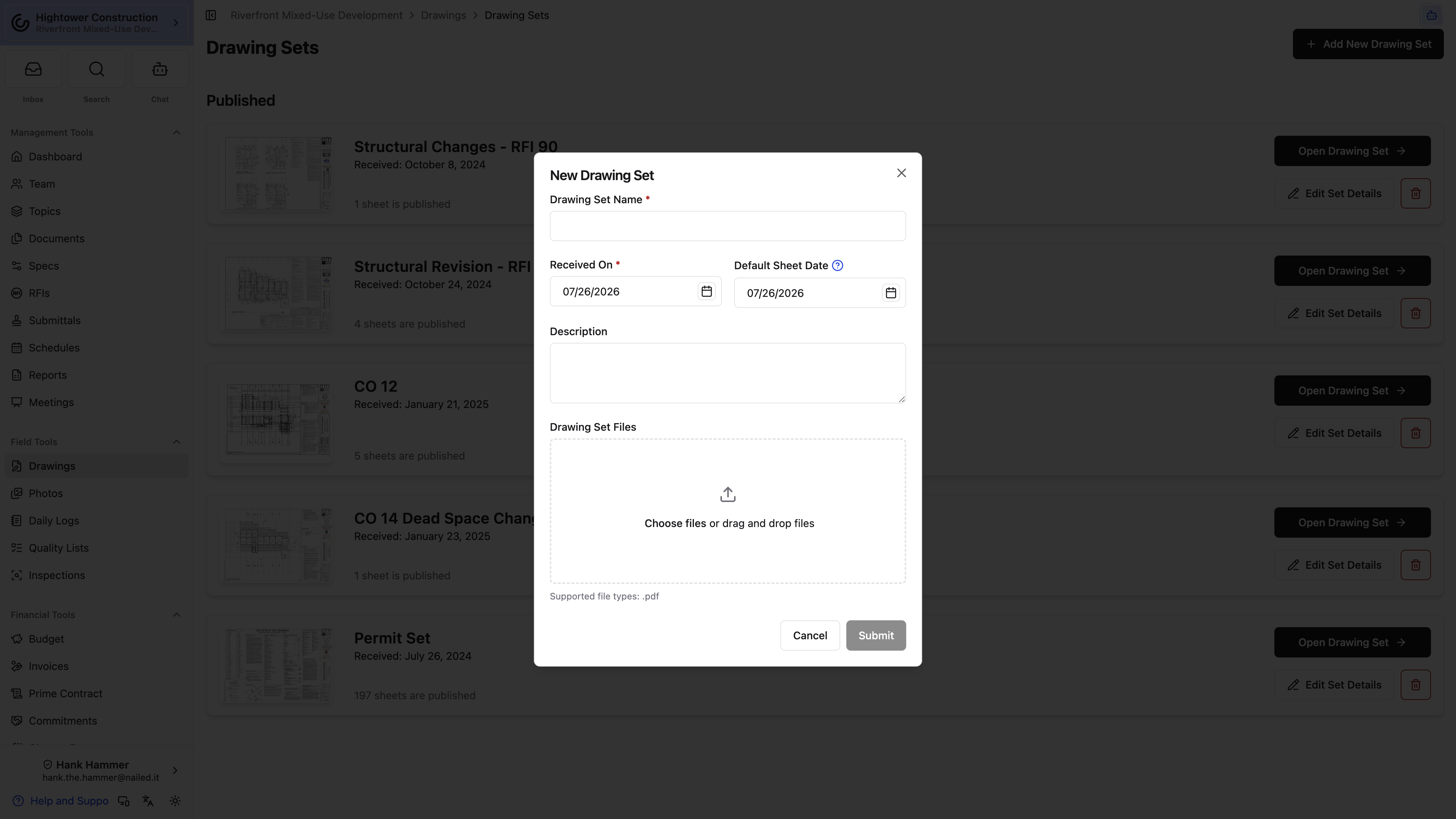
Upload a set
- Open the correct drawing area.
- Select Add/Edit Drawing Sets.
- Select Add New Drawing Set.
- Enter a clear set name, such as
Issued for Construction - 2026-07-15. - Enter the date the set was received.
- Choose a default sheet date, if one applies.
- Add an optional description.
- Attach one or more PDF files.
- Select Submit.
The drawing-set upload accepts PDF files. If the issuance arrived as several PDFs, attach them all to the same set rather than creating a separate set per file.
Example — ASI 3: Upload all PDFs issued together as one set named ASI 3 - 2026-07-15 in the drawing area that already contains A101. Don't create a new drawing area just because the issuance is new.
Choose a useful default sheet date
The default sheet date gives the imported pages a sensible starting point. You can correct individual dates during review, or edit dates in bulk after processing.
Use the date printed on most sheets, which isn't necessarily the date the files hit your inbox. If the package contains mixed dates, choose the most common one and fix the exceptions during review.
Edit set details
You can change the drawing set's name, received date, default sheet date, and description after uploading it. These fields describe the upload package — they don't touch the sheet number or title of the drawings inside it.
Delete a set
Deleting a drawing set removes its active pages from the drawing workflow. If the set contains published revisions, removing it can change which revision is current.
Note: One drawing set can hold the current revision of many sheets, so a deletion that feels small can reach further than you expect.
Before you delete, confirm all of the following:
- You have the correct drawing area and set open.
- You know whether any of its sheets are published.
- You've downloaded a copy if the files need to be retained outside Constructable.
Pro Tip: If you only need to remove one page, delete that sheet instead of the entire set.
The issuance arrived as five separate PDFs. Do I create five sets?
No. Attach all five files to the same drawing set. The set represents the issuance, not the file.
Can I fix the set name after uploading?
Yes. The name, received date, default sheet date, and description are all editable afterward, and changing them doesn't affect the sheets inside.
Your plans are in the system and on their way to review. Continue with What happens while a drawing set is processing.
What happens while a drawing set is processing
A drawing set you've just uploaded sits under Processing on the Drawing Sets page while we split the PDFs into individual sheets and read the title blocks. It runs in the background, so you can close the tab — we email you when the set is ready for review.
What Constructable does
For each uploaded PDF, we:
- Separate the file into individual sheets.
- Create thumbnails and viewer-ready versions.
- Read drawing text for search and sheet links.
- Look for likely sheet numbers, titles, and disciplines.
- Attempt to detect a usable drawing scale.
Note: Treat all of that as suggestions, not final drawing details. You still review every sheet before it can be published.
Follow processing progress
The Drawing Sets page shows the set under Processing. Once pages are available, a progress bar reports how many sheets have finished metadata extraction.
We email whoever uploaded the set when every page is ready for review, unless that person has unsubscribed from email. Drawing-area notification preferences don't control this one-time processing email, so you'll get it whether or not you follow the area.
Large or complex PDFs take longer than small, text-based ones. Scanned pages often need more manual correction too, simply because there's less readable text to work from.
If detected details are blank or wrong
Processing can finish even when we can't confidently read a field, and that isn't necessarily an upload failure. Open the Review Drawing Set screen and enter the missing sheet number, title, date, or discipline yourself.
If the upload fails
A failed set appears with an error message. We record the failure for investigation, and you can dismiss the failed set.
Before you upload again:
- Confirm that each attachment is a valid PDF.
- Try opening the file locally.
- Re-save or flatten a damaged PDF if that's practical.
- Avoid re-uploading the same set while an earlier attempt is still processing.
If a valid file fails more than once, reach out to us with the project name, drawing area, set name, and original PDF filename.
How long should processing take?
It depends on the file. Small, text-based PDFs finish quickly; large, complex, or scanned ones take longer. Watch the progress bar on the Drawing Sets page rather than the clock.
A sheet number came through blank. Did the upload fail?
No. We couldn't read that field confidently, which is common with scanned pages. Fill it in during review and the sheet is fine.
When processing finishes, the set moves to Needs Review and the plans are ready for your eyes. Continue with Reviewing and confirming an uploaded drawing set.
Reviewing and confirming an uploaded drawing set
Review is where you check the sheet number, title, date, and discipline we read off each page, and correct whatever we got wrong. Nothing you do here reaches the field — the set stays invisible to the wider project team until you publish it — so it's the safest place in the whole workflow to take your time.
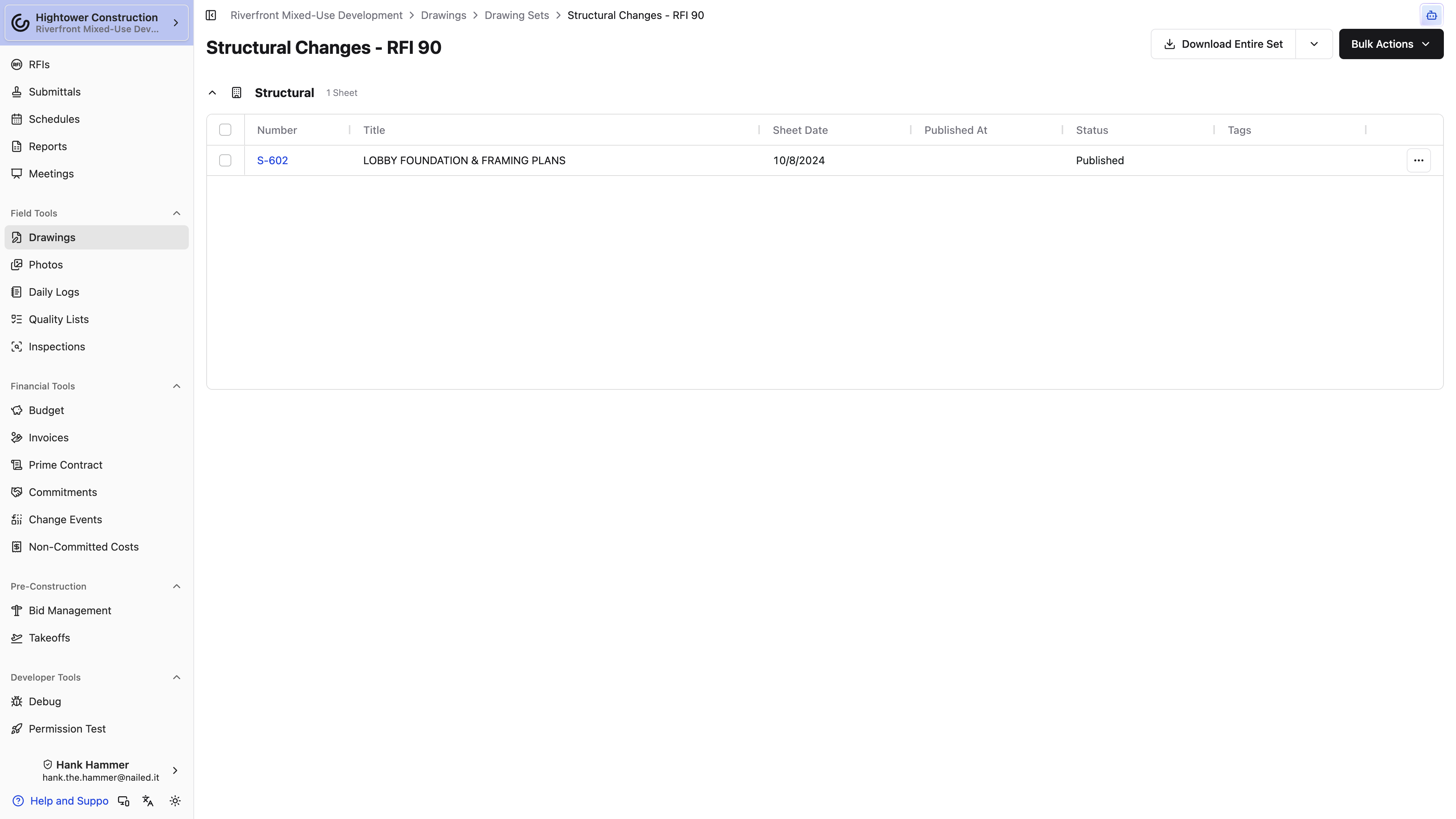
Open the review workspace
On the Drawing Sets page, find a set under Needs Review and select Review Drawing Set.
The Review Drawing Set screen shows:
- A list of sheets
- The number confirmed out of the total
- A sheet preview
- Editable sheet details
- Search and navigation controls
The list starts out focused on sheets that still need confirmation. Turn on Show confirmed sheets when you want to revisit work you've already finished.
Review each sheet
For every page, verify:
- Sheet number
- Sheet title
- Sheet date
- Discipline
We start you off with the details detected during processing. Correct anything that doesn't match the title block.
Valid changes save automatically after a short pause, and a Saved indicator confirms it. If a field has an error, fix it before you move on.
Example — ASI 3: If the revised plan is meant to replace A101, confirm its number in the same format as the existing drawing. A101 and A-101 may be treated as different identities.
Select Confirm and Next to confirm the current sheet and keep going. On the last remaining sheet, select Confirm.
Use search and bulk confirmation
Search filters the review list by sheet number, title, or discipline, which helps when you're working through a large set or checking one related group of sheets.
Confirm All confirms every unconfirmed sheet that has no detected errors. Sheets with missing details or duplicate numbers stay in the queue for individual review.
Note: Spot-check the extracted details before you reach for Confirm All. The number you confirm here is the one we match every future revision against, so a wrong number quietly stays wrong on every reissue that follows.
Handle disciplines efficiently
You can select an existing discipline or create one right here during review. If you change the discipline on a sheet with a common number prefix, we may offer to update the other unconfirmed sheets sharing that prefix.
Pro Tip: Take that offer when the prefix is reliable for the set — it saves a lot of clicking. Skip it when the package mixes numbering conventions, because not every project follows the same one.
Remove an unwanted page
Use Delete Sheet when the PDF includes a cover page, a blank page, a duplicate, or anything else that shouldn't become a drawing.
Does confirming a sheet make it visible to the team?
No. Confirming settles the sheet's identity; publishing is what releases it. Those are deliberately separate steps.
Why won't Confirm All take some of my sheets?
Those sheets have missing details or duplicate sheet numbers. They stay in the queue so you can resolve them one at a time.
Once every sheet is confirmed, the set moves to Unpublished with its sheet numbers settled. The next step is Publishing and unpublishing drawings.
Publishing and unpublishing drawings
Publishing is the moment your confirmed sheets become the current drawings everyone else works from. Until you publish, the set is finished on your side and invisible on theirs — which is exactly the pause you want before releasing an issuance.
Confirming vs. publishing
These two steps are separate on purpose:
- Confirming verifies the sheet's identity and details.
- Publishing makes the revision visible to project members with drawing access.
The gap between them is your chance to look over the entire issuance before any of it reaches the field.
Publish a drawing set
- Open Add/Edit Drawing Sets.
- Open the set you want to release.
- Open Bulk Actions and choose Publish All.
- Review the confirmation message and publish.
To release only part of the set, tick those sheets first. Bulk Actions then offers Publish 12 Selected instead — the menu counts your selection into the label — and Publish All drops away.
Only confirmed sheets can be published. Published sheets pick up revision numbers and become available from the Drawings page.
Pro Tip: If you're a drawing administrator already looking at an unpublished sheet in the viewer, there's a publish action right in the revision notice at the top. No trip back to the set required.
Example — ASI 3: Publish the approved A101 page when it's ready. We make it the current A101 while keeping the earlier revision in the viewer's history.
Note: Bulk publish and unpublish controls live in the desktop-web drawing-set workflow. They aren't shown in mobile web or the native app, so reach for a laptop when you're releasing or withdrawing several sheets at once.
Publish in stages
You don't have to release a set all at once. Publishing selected sheets is the right move when:
- A partial issuance is approved before the rest.
- A few sheets still need correction.
- Different disciplines are released at different times.
The drawing set status keeps count of how many sheets remain unpublished, so nothing gets forgotten halfway through.
Unpublish a sheet
Unpublishing pulls a revision out of the main drawing index for regular project viewers. The sheet stays available to drawing administrators from the drawing set workflow, so nothing is lost.
You can unpublish selected sheets or every published sheet in a set. Use it when a revision went out by mistake or needs correcting before it's redistributed.
Note: Unpublishing can change the revision sequence and which older revision counts as current. If what you really want is to issue a corrected version, uploading and publishing a new revision is usually clearer than withdrawing historical work.
Let the team know
Publishing and unpublishing both land in the drawings activity log, and both notify the project members who follow that drawing area. Give the set a clear name so recipients can tell what changed without opening anything.
Note: Bidders are excluded from publish-event recipients even when they can view drawings. If bidders need to know a set went out, tell them another way.
Can I publish part of a set?
Yes. Tick the sheets you want, then use the Publish n Selected item in Bulk Actions. The set keeps track of what's still unpublished.
Should I unpublish a sheet or upload a corrected one?
Upload a corrected revision when the fix should stay in the record. Unpublish when the release itself was a mistake and shouldn't be part of what the team sees.
Your issuance is out, and the field is looking at the plans you meant them to see. To learn how the current sheet gets chosen after publication, see Managing revisions and editing drawing details. After a revision publishes, Constructable also writes a briefing of what changed — see Viewing revision changes.
Managing revisions and editing drawing details
Every version of A101 stacks up under one row on the Drawings page, so the index shows you today's plan without burying the ones that came before it. What holds that stack together is the sheet number — this article covers how the match happens and how to edit details without breaking it.
How a new revision is created
When a confirmed sheet matches an existing drawing, publishing it adds a revision instead of spawning another unrelated row. Sheet number consistency is what makes that match work.
When a new revision is confirmed, we can copy scale information and non-takeoff markup forward from the latest published revision. That copying only happens when the new revision doesn't already contain markup, and takeoff marks are never carried forward.
Note: Review the new sheet before you assume copied markup still points at the right thing. When the underlying plan changed, carried-forward markup may need repositioning.
In the ASI 3 example, the newly published A101 becomes the current drawing, and the previous A101 stays available as an older revision for comparison and context.
View revision history
Open a sheet in the viewer and use the revision selector to switch versions. Open an older revision and a notice points you back to the latest one.
You can also open revisions in a new tab, compare them in Split View, or overlay them. See Comparing sheets and revisions with Split View and Comparing drawings with overlays.
On phones and in compact layouts, revision labels shorten to V1, V2, and so on instead of Rev. 1, Rev. 2. Same history, shorter label.
Edit details shared by all revisions
Use Edit Drawing Details when you're correcting information that identifies the drawing itself:
- Sheet number
- Sheet title
- Discipline
- Drawing tags
Changes to sheet number, title, or discipline apply across every revision of the drawing.
Note: Renaming a sheet to a number that's already in use can create a conflict or merge situation. Check what's already sitting at the destination number before you save.
Edit one revision
Edit Revision — on the row's actions in a drawing set's sheet list and on the Drawings page — opens Sheet number, Sheet title, and Sheet date together, which is the fastest way to fix a title block that came through wrong without leaving the set you're reviewing. From a drawing set, you can also edit selected sheet dates or all of them in bulk.
Note: Only the sheet date is genuinely revision-specific. Sheet number and sheet title identify the drawing, so changing either from Edit Revision carries across all of its revisions, exactly as it would from Edit Drawing Details.
Delete carefully
Note: Deleting a published revision can renumber the revisions that remain, and deleting an entire drawing set can affect many drawings at once. Deletion is rarely the smallest tool for the job.
Here's how to choose:
- Edit Drawing Details or Edit Revision when the drawing or revision metadata is wrong.
- Unpublish when a released revision should temporarily disappear from current drawings.
- Upload and publish a new revision when you're issuing a correction that should remain part of the history.
- Delete only when the page should no longer be part of the active record.
Will renaming a sheet number rewrite its history?
The number, title, and discipline apply across all revisions, so yes — the change follows the whole drawing. The revisions themselves stay intact.
My markup didn't come across to the new revision. Why?
Markup copies forward only when the new revision doesn't already contain markup, and takeoff marks never copy forward at all. Anything added to the old revision after the new one was confirmed stays where you put it.
Get these habits right and your revision history stays a reliable record instead of a puzzle.
Viewing revision changes
After you publish a revision, Constructable writes a briefing of what actually changed between this issuance and the last one. Open it from the drawing set when you need to brief the trades — it isn't on the Drawings index.
Open the report
- Open Add/Edit Drawing Sets. You need drawing-management access to get there.
- Find the set you just published.
- While the description is still running, the set shows Generating revision changes… and the link isn't clickable yet.
- When it's ready, the banner reads Revision changes are ready. Select View revision changes.
Anyone with View drawings can open a finished report. Failed generations don't leave a banner — a failed report route is simply not found. Partial completes can still list undescribed sheet numbers in the briefing.
The report is one per drawing set. Publishing more revised pages from that set updates the same briefing rather than creating another one. First issuances (revision 0) aren't described; the report still runs so it can check detail links.
Read the briefing
The page title is the drawing set name. The header shows the revision range, how many changed sheets are listed, and when the report was generated.
The briefing is a short AI summary — why the set was issued, the main layout or scope shifts, and which trades need to coordinate — with sheet numbers you can follow. Related RFI, Submittal, Change order, and Document badges appear at the top when several sheets share them, and again on the individual sheet cards.
Sheets are grouped by discipline. Each card has a thumbnail (opens the viewer), the sheet number, the revision range, the title, and what changed. Sheets with no material change stay off the list, so a 40-page set might only show the eight that actually moved.
This work runs as an internal Agent pass. It does not appear in All Chats or under Use a Skill.
Broken detail links
At the bottom of a completed report, Broken detail links lists callouts whose destination detail isn't on the published sheet they point to.
While that check is still running you'll see Checking detail links…. If it fails: Constructable could not finish checking detail links.
The destination is the detail the callout points to. The source is the sheet where that callout is printed. Groups read Destination: D4 on A501 (or the sheet alone when the detail has no number) and Source: the sheets that point there. Open either side to jump into the viewer.
Only missing details on sheets that exist are listed. A callout to a sheet that was never published, or a tag we couldn't recognize as a detail, will not show up here.
Note: A first publish with no revised pages can still show Revision changes are ready so you can open this detail-link check. The briefing itself is for later revisions.
Where is View revision changes?
On the drawing set, not on the current Drawings index. Open Add/Edit Drawing Sets, then the set.
You now have a briefing you can send the trades, plus a list of detail callouts that no longer land.
Find and manage current drawings
Using the Drawings page
The Drawings page is your project's current drawing index. It shows the latest published revision of every sheet in the selected drawing area, which makes it the one place to go when you need to be sure you're looking at today's plan.
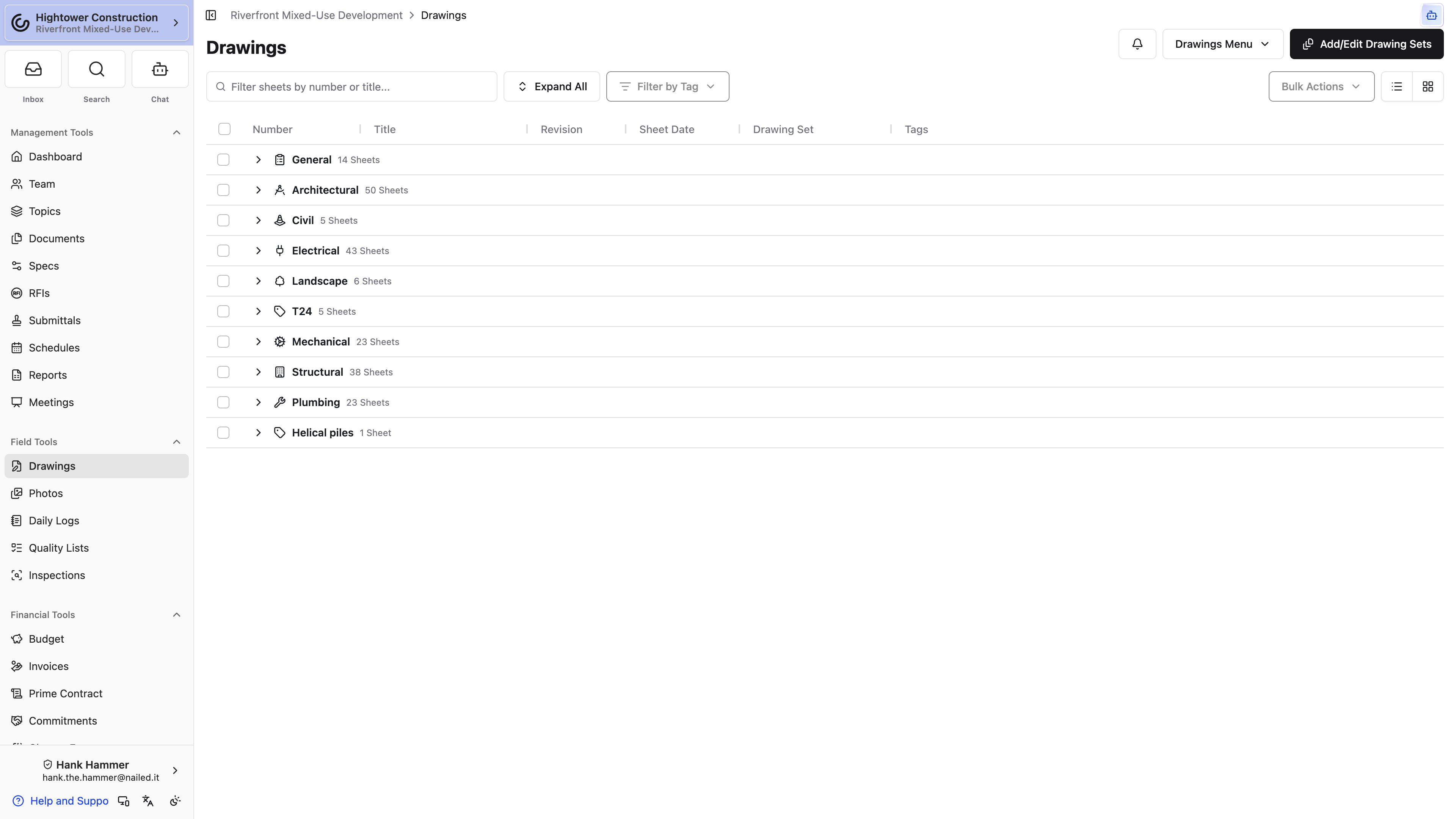
Don't confuse it with Drawing Sets, which is where drawing administrators handle uploads, reviews, and unpublished pages.
Choose a view
On desktop web, two icon buttons labelled Drawing view switch between:
- List view for sheet details, row selection, and bulk actions
- Thumbnail view for a visual scan of the plans
We remember which one you picked. Phones and the native app stay in thumbnail view, since that's far easier to navigate by touch.
Thumbnail cards lead with the sheet number, title, and preview. When you need the drawing set a sheet came from or its full revision history, open the sheet and use its revision selector.
Browse discipline groups
Drawings are grouped by discipline. Select a group to expand or collapse it, or use Expand All and Collapse All.
Two more groups appear when they have anything in them:
- Starred for sheets you've marked as favorites
- Uncategorized for drawings without a discipline
Note: Starred sheets still belong to their normal discipline. The Starred group is a shortcut, not a second copy of the drawing.
Understand the list columns
List view can show:
- Number
- Title
- Revision
- Sheet Date
- Drawing Set
- Tags
- Available actions
The index follows a deliberate project order based on discipline and sheet position, and column-header sorting isn't available. If the order is wrong for your project, a drawing administrator can change the shared order from Edit/Reorder Disciplines & Sheets.
Open a drawing
Select a sheet number, title, or thumbnail to open the latest revision in the drawing viewer. When you leave the viewer, we put you back where you were — same view, same expanded groups, roughly the same scroll position.
Expected a sheet and don't see it? Check these four things:
- The selected drawing area
- Active search or tag filters
- Whether the sheet was confirmed but not published
- Whether the latest revision was unpublished
Why can't I sort by sheet date?
The index uses your project's own order — discipline first, then sheet position — instead of column sorting. That keeps everyone looking at the same sequence.
Is a starred sheet a different drawing?
No. Starring adds a personal shortcut group. The sheet stays in its discipline and nothing changes for anyone else.
That's your current plan set, one click from the viewer. For more ways to land on the right sheet, continue with Finding drawings with search, stars, and tags.
Finding a detail with the Details tab
Somebody asks where detail 6 is and the honest answer is usually "somewhere on the A5 sheets." The Details tab turns that into a lookup: every numbered detail we found on your current sheets, by number and title, each one a link to that spot on the plan.
Above the drawing index you'll see two tabs, Sheets and Details. Sheets is the index described above. Details is only there when we actually found details on the drawing area's latest sheets, so a drawing area of site plans and schedules may not show it at all.
- Open Drawings and pick the drawing area.
- Select the Details tab.
- Type into Filter details by number or title... if the list is long — it matches on the sheet number and title as well as the detail's own.
- Select a detail's Number or Title.
The list is grouped by sheet, with the sheet number, sheet title, and a count of the details on it. Collapse the sheets you don't care about; we remember which ones you left open for that drawing area. Selecting a detail opens the viewer on that sheet and zooms to the detail rather than dropping you at the top of a full-size plan.
Details come out of the same processing that happens when a drawing set is uploaded, so a set that finished processing before this existed won't have them until it's processed again. We only list the ones we're confident about — a smudged or hand-drawn callout may not appear even though you can read it, and the sheet itself is still the authority.
Note: A detail here is a callout we recognized on the sheet. It isn't a record you can edit, comment on, or assign, and nothing you do on this tab changes the drawing.
Find it by number instead of by memory, and the plan set stops being something only the person who drew it can navigate.
Why is there no Details tab on my drawing area?
Nothing was detected on its latest published sheets. That's normal for areas that hold schedules, site plans, or scanned sets, and it's also what you'll see if the drawing set was processed before detail detection ran.
A detail I can see on the sheet isn't in the list
We only list detections we're confident about, so faint, rotated, or handwritten callouts get left out. Use viewer search or the sheet itself for those.
Finding drawings with search, stars, and tags
Nobody should have to scroll a full plan set to find one sheet. Search, stars, and tags each solve a different version of that problem — search for the sheet you can name, stars for the ones you open constantly, tags for the groups your project cares about.
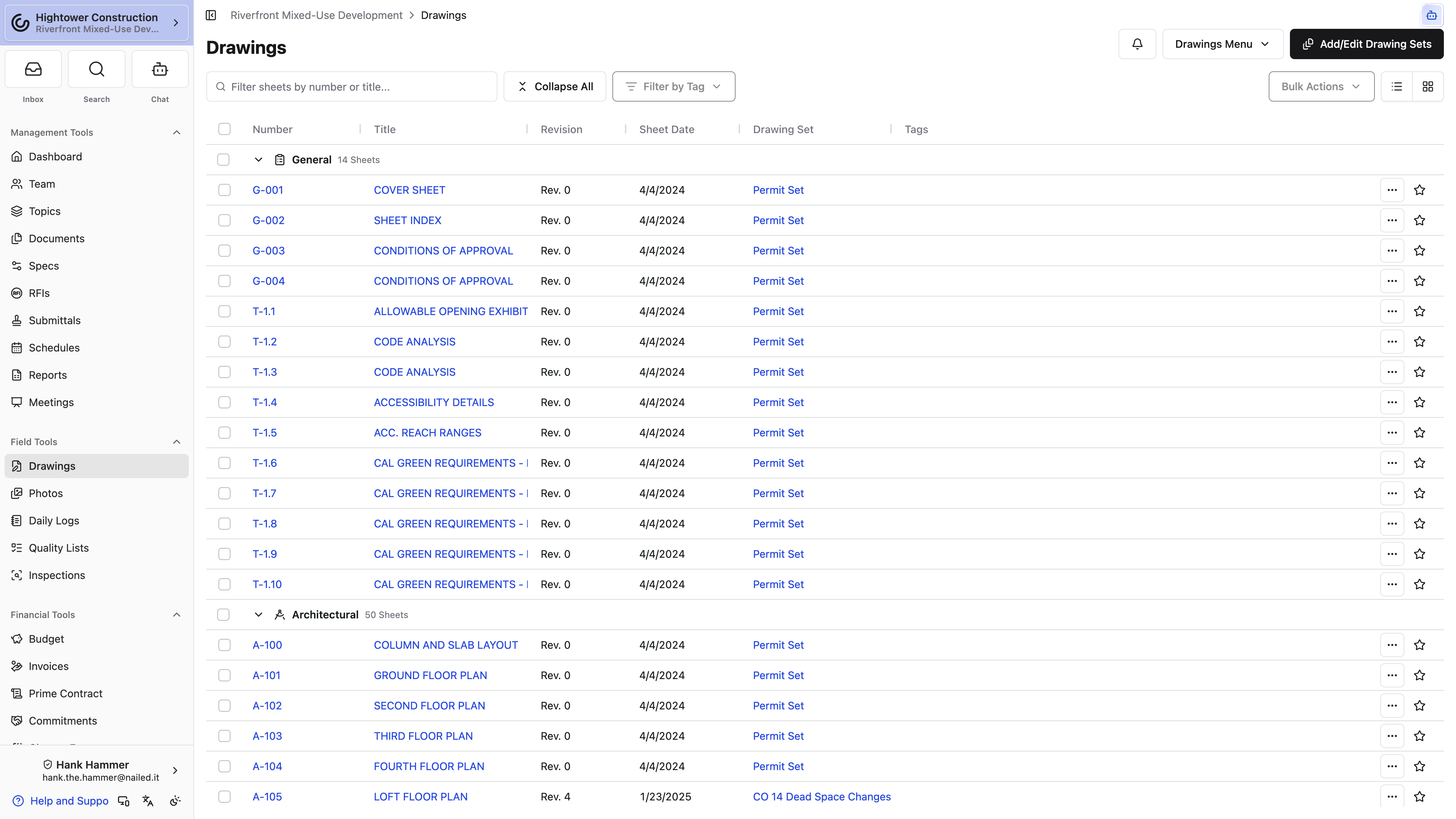
Filter by sheet number or title
Use the search field on the Drawings page to filter the current area. Enter at least two characters. We match loosely against sheet numbers and titles, so a partial term will usually still land you on the right sheet.
This searches the drawing index, not the text printed inside the PDFs. To search what's actually drawn on the plans, use the tools in Navigating and searching in the drawing viewer.
Note: We remember your search text per drawing area. If the page looks unexpectedly empty when you come back later, you're almost certainly still filtered — clear the search field.
On a phone, drawing-content search lives in the sheet selector or the viewer's overflow menu rather than a permanent toolbar button.
Star frequently used sheets
Select the star action on a drawing to drop it into your personal Starred group.
Stars earn their keep for:
- A superintendent's most-used logistics and floor plans
- Sheets needed during a specific phase
- A small review set you open over and over
Starring changes nothing for anyone else, and it has no effect on publication or discipline. It's your shortcut.
Organize and filter with drawing tags
Tags are project-defined labels that group sheets across disciplines. Creating tag definitions and assigning them to one or many drawings takes drawing-management access.
To filter:
- Select Filter by Tag.
- Choose one or more tags.
- Choose whether drawings should match any selected tag or all selected tags.
Active filters appear near the toolbar, and you can remove them one at a time or clear the lot.
Pro Tip: The active tag filter carries into the viewer's sheet selector, so you can page through the same filtered group without bouncing back to the index. Filter to
Permit Setbefore you open a sheet and the whole review stays inside that group.
Tags vs. disciplines
Use a discipline for the sheet's primary professional category, and tags for the flexible project-specific groupings that cut across them.
Electrical is almost certainly a discipline. Permit Set, Building B, or Foreman Favorites are better as tags.
Why does search find nothing when I know the text is on the sheet?
The Drawings page search only looks at sheet numbers and titles. Text printed inside the PDF is searchable from the drawing viewer instead.
Can other people see my starred sheets?
No. Stars are personal. Use a tag when you want a group everyone on the project can filter by.
Between the three, you should be able to get to any sheet in a couple of seconds.
Using bulk actions, activity, and notifications
Retagging forty sheets one at a time is nobody's idea of a good afternoon. In desktop list view you can tick a batch of drawings and retag, recategorize, download, or share them in one pass. The same menu is where you check who changed what, and where you turn the drawing area's email notifications up or down.
Select drawings
Use the row checkboxes to select individual drawings. Selecting a discipline group can select its visible descendants, which is the fast way to grab an entire discipline.
Note: Bulk actions stay hidden until at least one drawing is selected, and they aren't shown at all in thumbnail view or on mobile and native layouts. If you can't find them, switch to desktop list view first.
Available bulk actions
Depending on your permissions, you can:
- Add or remove drawing tags
- Change disciplines
- Download selected drawings
- Create a shareable link for selected drawings
Tag and discipline edits need drawing-management permission. Downloads and share links are open to anyone who can view the selected drawings.
Note: Bulk tag editing adds or removes only the tags you choose — it isn't a wholesale replacement of every existing tag. Check which edit mode you're in before you save.
View drawing activity
Open the Drawings menu and select View Drawings Activity Log to review the events tied to that drawing area.
It's the right place to settle questions like:
- When was a set published?
- Was a sheet unpublished?
- Who changed or removed drawing information?
Note: The activity log tells you what happened in the past. When you need to know which revision is current right now, check the viewer instead.
Manage notifications
Drawing notification settings decide how much email a drawing area sends you, and the setting you pick for one area overrides your project and personal defaults for that area only.
If you customized an area and want your normal settings back, reset it to defaults. Your personal and project notification settings are reachable from here too when the change should be broader.
Note: Notification options only affect the alerts you receive. They never change your permission to view or edit drawings.
Why don't I see bulk actions?
You're most likely in thumbnail view, on a mobile layout, or haven't ticked a row yet. Bulk actions exist only in desktop list view with at least one drawing selected.
Does turning off drawing notifications hide drawings from me?
No. Notifications and permissions are completely separate. Muting an area just means we stop telling you about it.
One pass through list view and a whole discipline is retagged, downloaded, or shared.
Downloading and sharing drawings
You can pull down current drawings, a handful of selected sheets, a whole uploaded drawing set, or just the sheet you're looking at. The one decision worth making first is whether your recipients need today's plans, one historical upload package, or a single sheet.
Download all current drawings
From the Drawings menu, select Download All. The PDF you get contains the latest published revision of every drawing in the selected area.
This is the right answer most of the time when you're distributing a current plan set.
Download selected drawings
In desktop list view:
- Tick the rows you want.
- Open Bulk Actions.
- Select Download Selected. The menu counts your selection into the label, so it reads Download Selected (12 sheets).
You get a PDF containing the latest revision of only those drawings.
On mobile web and in the native app you can still download all current drawings from the Drawings menu — it's picking an arbitrary group out of the current index that needs desktop list view. The native app can also export selected pages from an individual drawing set, where the selection belongs to that upload package rather than the current drawing index.
Download a drawing set
Open a drawing set and choose Download Entire Set, or select specific pages within the set.
A drawing set page works the same way the Drawings index does, which matters on a large issuance. Filter it with Filter sheets by number or title..., narrow it with Filter by Tag, open or close the discipline groups with Expand All and Collapse All, and switch between List view and Thumbnail view with the Drawing view buttons. In list view you also get Published At and Status columns, so you can see at a glance which pages of the set went out and which are still Unpublished. Tick rows there and the set's bulk actions apply to that selection.
Note: A drawing-set download gives you that upload package as it was, which can include older revisions and unpublished pages. Check what's in it before you hand it to someone as the current project set.
Include markup
The export dialog has an Include published markup checkbox, on by default. Clear it when the recipient needs clean plans; leave it on when the annotations are the whole point of the handoff.
Note: You only export markup you're allowed to see, so your access to RFIs, Submittals, list items, and other records changes what shows up. Two people exporting the same sheet can end up with different PDFs.
Create a shareable link
Choose Share Download Link for all or selected drawings. We generate the PDF, upload it, and hand you a link to copy.
Note: That link points at a snapshot, not a live view. When drawings change, generate a new link — the old one keeps serving the old package.
Download the drawing log
Select Download Drawing Log for a PDF register of the area's latest published drawings. It carries the sheet and revision metadata you'd want for a transmittal or coordination record, and it's a register rather than a plan set.
Export the current sheet
From the drawing viewer's toolbar or context menu, select Download to export the active sheet with its visible markup. Wait until the sheet has finished loading — the control stays disabled with Download is available once the sheet finishes loading until then.
Note: The current-sheet export has no Include published markup checkbox the way the bulk export does — it takes whatever is on screen. If you need it clean, select Hide all markup in the viewer first, then download.
There's no separate print workflow in the viewer. Export the PDF and print it from your normal PDF application.
Which download gives me the plans we're building from today?
Download All. It assembles the latest published revision of every drawing in the area. Download Entire Set gives you a historical upload package instead.
I sent someone a share link last month and it's out of date. Can I refresh it?
Generate a new link. The existing one points at the package we built when you created it.
Pick the option that matches the ask and your recipients open exactly the set you meant to send.
View, compare, and mark up
Navigating and searching in the drawing viewer
The drawing viewer is where you'll spend most of your time. You can inspect sheets, move through revisions, search the text printed on the plans, and work with markup without ever going back to the drawing index.
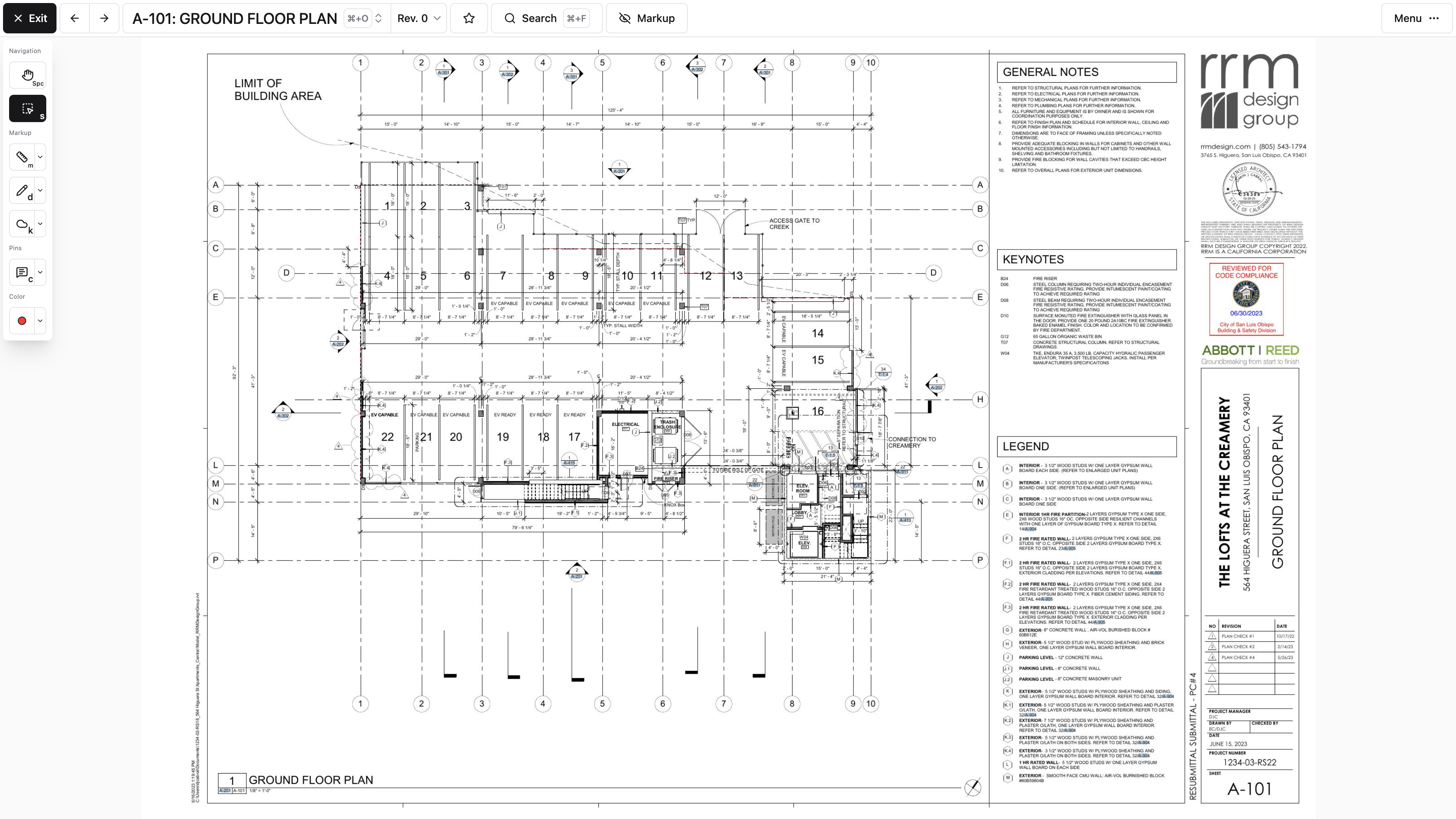
Pan, zoom, and select
Use the Pan tool to move around the sheet and the Select tool to work with markup and pins. On desktop you start in Select; in the native app, and whenever the scrollwheel-zoom preference is on, you start in Pan instead.
You don't have to switch tools to pan. Hold the spacebar while you click and drag, and you'll pan without leaving Select.
Note: The Pan tool won't let you select or edit ordinary markup — that's the point of it. Pins are the exception: you can still tap a pin while panning to open it.
To zoom, press + and -, hold Control (Command on Mac) while scrolling, or pinch on a trackpad.
Copy text off a sheet
Retyping a keynote or a door-schedule row into an RFI is how typos get into correspondence. Select text, under Selection tools in the toolbar, lets you drag across the text printed on the sheet instead. A Copy button appears beside what you've highlighted; select it and we confirm with Text copied, ready to paste anywhere.
This reads the sheet's own text layer, so it works on drawings issued as real PDFs and comes up empty on scanned or photographed sheets — the same reason viewer search can't find a phrase on a scan.
Note: Select text is unavailable while you're comparing drawings, and the tool's tooltip says so: Text selection is not available during drawing comparison. Close the comparison and the tool comes back.
Shortcuts on desktop:
| Key | Action |
|---|---|
S | Select tool |
Hold Space | Pan while Select stays active |
M | Measure distance |
A | Measure area |
D | Pencil |
H | Highlight |
T | Text |
K | Cloud |
C | Comment pin |
+ / - | Zoom in and out |
← / → | Previous and next sheet |
Esc | Return to the default tool |
Delete | Remove the selected markup |
Cmd/Ctrl + Z | Undo |
Cmd/Ctrl + A | Select everything in the active Topic |
Cmd/Ctrl + O | Open the sheet selector |
Cmd/Ctrl + F | Open search |
Your scroll-wheel behavior depends on your user setting. If the wheel zooms when you expected it to scroll, check Scrollwheel zooms the drawing viewer under User Preferences in My Account.
On touch devices, pinch to zoom and drag to pan — no keyboard shortcuts needed. On phones, sheet and revision controls live in the bottom bar while Pan or Select is active. When you choose a markup or measurement tool, that space changes to tool controls; tap the checkmark button at the right end of the bar to put the sheet controls back.
We load a quick preview first, then replace it with detailed PDF tiles as needed. A brief change in sharpness while zooming is normal.
Move between sheets
Use the previous and next buttons, arrow keys, or mobile swipe controls to move through the current drawing order.
Open the sheet selector to:
- Browse thumbnails by discipline
- Filter by sheet number or title
- See starred sheets
- Replace the current sheet
- Open a sheet in a new tab
- Open the sheet in Split View, or overlay it on the one you're looking at
If you entered the viewer with a drawing-tag filter active, the selector stays within that filtered set until you clear the filter.
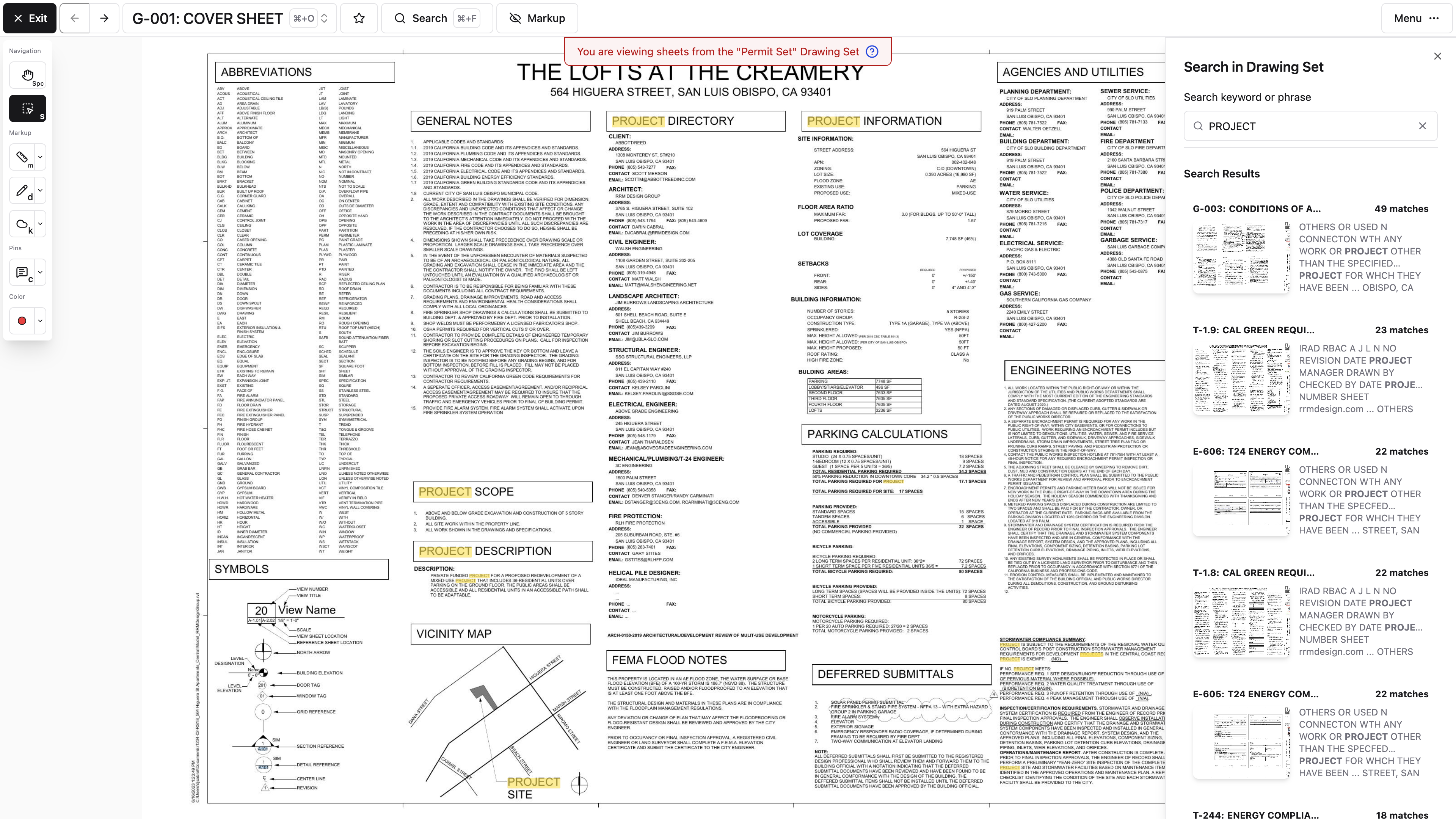
Search drawing content
Viewer search reads the text extracted from the drawing sheets themselves, not just sheet titles — so you can go looking for a keynote or a room name.
You can:
- Enter a term or phrase.
- Use exact matching when wording matters.
- Preview matching sheets.
- Open a result and jump to its highlighted location.
Note: Scanned or low-quality text may not be fully searchable. If you can see a phrase on the sheet but search won't find it, try a shorter distinctive term or search by sheet number instead.
Follow sheet-number links
We recognize many of the sheet references printed in the plans — both the plain sheet numbers in the text and the circled detail bubbles that point somewhere else. They show up as a faint blue shaded box over the reference. Select one and we'll open the target sheet, so you're not hunting through the index for the detail a plan just pointed you at.
When the reference names a specific detail, we go one better and zoom to that detail on the target sheet instead of leaving you at the top of it. See Finding a detail with the Details tab for the list view of the same information.
Links depend on readable drawing text or a recognized callout, plus a matching sheet in the area. A reference won't link if the target sheet is unpublished, numbered differently, or wasn't recognized during processing. After you publish, Viewing revision changes also lists Broken detail links — callouts whose destination detail isn't on the published sheet they point to.
On desktop, following a sheet link opens the referenced sheet in Split View beside the one you're reading — including when the reference points at a detail on the sheet you're already looking at, which is the case where you most want both at once. On mobile, it replaces the current sheet and drops the original into the viewer's back history.
Hide markup temporarily
Select Hide all markup in the viewer when you need a clean look at the underlying sheet; the same control then reads Show all markup to bring it back. On narrow layouts the button shows only the word Markup with an eye icon. Either way it only changes what you see — nothing is deleted or unpublished.
Pins go with it. Comment, photo, RFI, Submittal, and list-item pins all disappear alongside clouds and text, which is what you want when you're reading the sheet or capturing it for someone else, and worth remembering when a pin you were about to open vanishes.
Why does the sheet look blurry for a second when I zoom?
We load a quick preview first and swap in detailed PDF tiles behind it. That brief change in sharpness is the handoff, not a problem with the file.
My scroll wheel zooms when I want it to scroll. Can I change that?
Yes. Scrollwheel zooms the drawing viewer is a user preference under User Preferences in My Account.
Learn the handful of shortcuts above and you'll move through a plan set about as fast as you can think.
Comparing sheets and revisions with Split View
Split View puts two sheets or revisions side by side so you can read both of them properly instead of flipping back and forth and trying to hold one in your head. You'll need access to both sheets or revisions you want to compare.
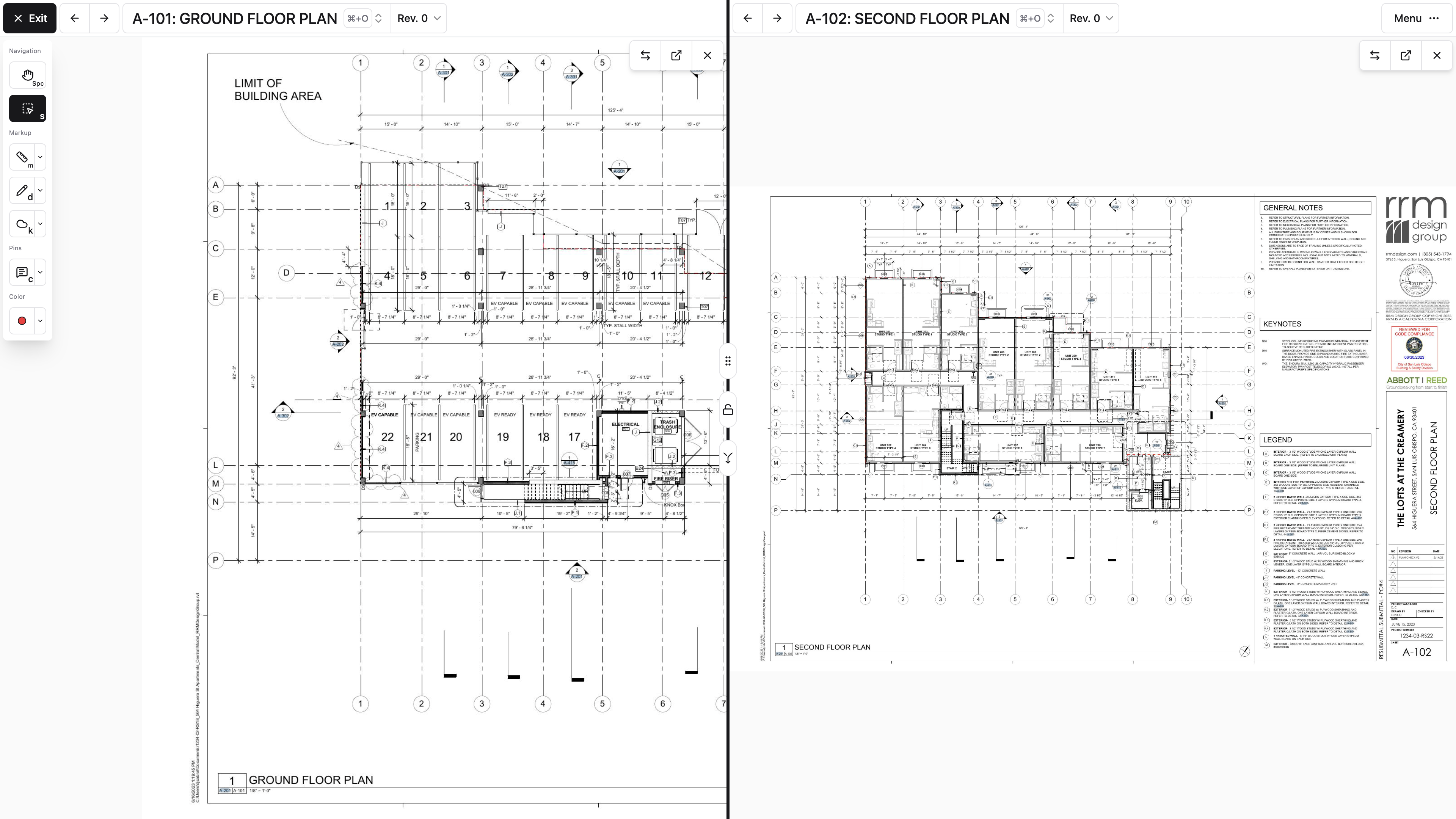
Open Split View
From the sheet or revision selector:
- Find the second sheet or revision.
- Choose Open in Split View.
- Resize the panels as needed.
You can compare two revisions of one drawing, or two entirely different sheets.
Work with the panels
Whichever panel your pointer is over is the one that gets your keyboard shortcuts and tools, so move the pointer before you press anything.
Split View controls let you:
- Swap the primary and secondary sheets
- Open a panel in a new browser tab
- Close the secondary panel
- Navigate each panel's sheet or revision
Each panel pans and zooms on its own to start with. Two buttons on the divider between them change that. The padlock is Lock Views, which pins both panels to the same spot on the sheet; select it again for Unlock Views. Below it, the arrows button syncs movement across views, so panning or zooming one panel moves the other with it. Both work best when the two sheets share a similar size, orientation, and origin.
Note: Opening a revision in a separate browser tab is a web-only action. The native app uses single-sheet navigation on phones and tablets alike, while mobile web offers Split View on a tablet big enough to fit two panels.
When Split View is the right tool
Split View is what you want when:
- You want to read both sheets normally.
- The sheets have different layouts.
- You're comparing a plan with a related detail.
- You want independent markup context on each side.
Reach for an overlay instead when the sheets represent the same geometry and you want the differences stacked directly on top of one another.
Limitations
Note: Sheet scale calibration is unavailable while Split View is open. Close the secondary panel before you set or correct a sheet's scale.
On smaller screens, Split View may be hidden entirely or replaced by normal sheet navigation. Desktop web or a larger tablet layout gives you the comparison you're after.
Why is calibration greyed out?
Split View is open. Close the second panel and the scale controls come back.
Can I use Split View on my iPad?
In the native app, no — it uses single-sheet navigation on tablets. Mobile web on a large enough tablet may offer it. Overlay comparison works on both.
Two plans, both readable, one screen — which is usually all a coordination question needed in the first place.
Comparing drawings with overlays
An overlay stacks one sheet directly on top of another so changes to the linework jump out at you. It's the fastest way to answer "what actually moved between Rev. 2 and Rev. 3?" when both drawings cover the same physical area.
Start an overlay
Open the sheet or revision selector, find the comparison sheet, and choose the overlay action. You can start one from the revision selector too. On phones and tablets, the sheet picker and overlay controls shift into compact layouts.
Overlays work in supported desktop and mobile browsers, including Safari on iOS, and in the native app. A smaller screen changes the control layout, not what the comparison can tell you.
Choose a comparison mode
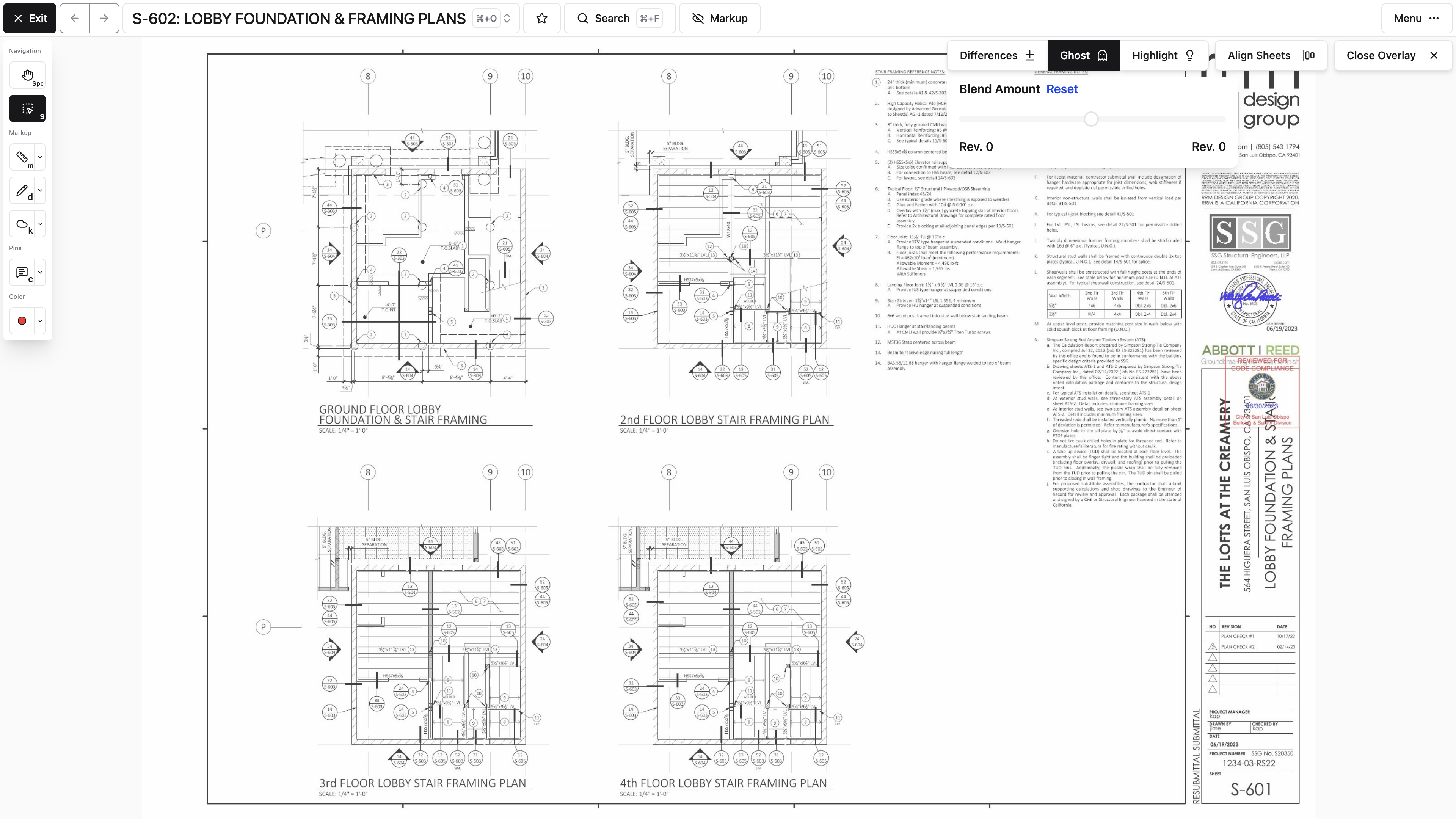
- Differences tints the two sheets against each other so anything that moved shows up as one colored line next to another. Reach for this when you're chasing a dimension or a wall that shifted.
- Ghost fades one sheet to a faint image over the other, which keeps both drawings legible. Reach for this when you still need to read notes and callouts while you compare.
- Highlight picks out the regions that differ rather than the individual lines. Reach for this first on a busy sheet, to find the two or three areas worth looking at closely.
For Differences and Ghost, the Blend Amount slider shifts the balance between the two sheets. Slide it back toward the middle if the comparison starts getting hard to read.
To take the overlay with you, select Download. On the web that rasterizes the live composite. The app disables it with PDF export is not available in the app. Align Sheets blocks it with Export is not supported in alignment mode. If the overlay isn't ready yet: This overlay is not ready to export.
Align sheets with three points
If the sheets don't line up:
- Select Align Sheets.
- Choose three matching reference points on the first sheet.
- Choose the same three points on the second sheet.
- Review the aligned result.
Pro Tip: Pick reference points that are far apart and unmistakable — grid intersections or fixed building corners. Three points clustered in one small area will look aligned right there and drift badly across the rest of the sheet.
Note: Some comparison modes are unavailable while you're aligning. Finish or cancel the alignment before you close the overlay.
A comparison is not a change record
An overlay shows you what looks different. It doesn't decide what's contractually significant, and it isn't a record anyone can act on later. Confirm what you find against the issued documents, then capture the decision in a Topic, an RFI, or whichever workflow the change belongs in.
Should I use an overlay or Split View?
Overlay when the two sheets cover the same geometry and you want differences stacked on top of each other. Split View when the layouts differ or both sheets need to stay readable.
The two sheets won't line up. What now?
Use Align Sheets and pick three widely separated matching points on each sheet, like grid intersections.
Two minutes with an overlay usually tells you more about a revision than reading both sheets ever would.
Adding and editing drawing markup
Markup is how you point at something on a plan and make everyone else see it too — a cloud around the conflict, an arrow at the detail, a note explaining what you need. Draw it in the viewer, then save it where the right people will find it.
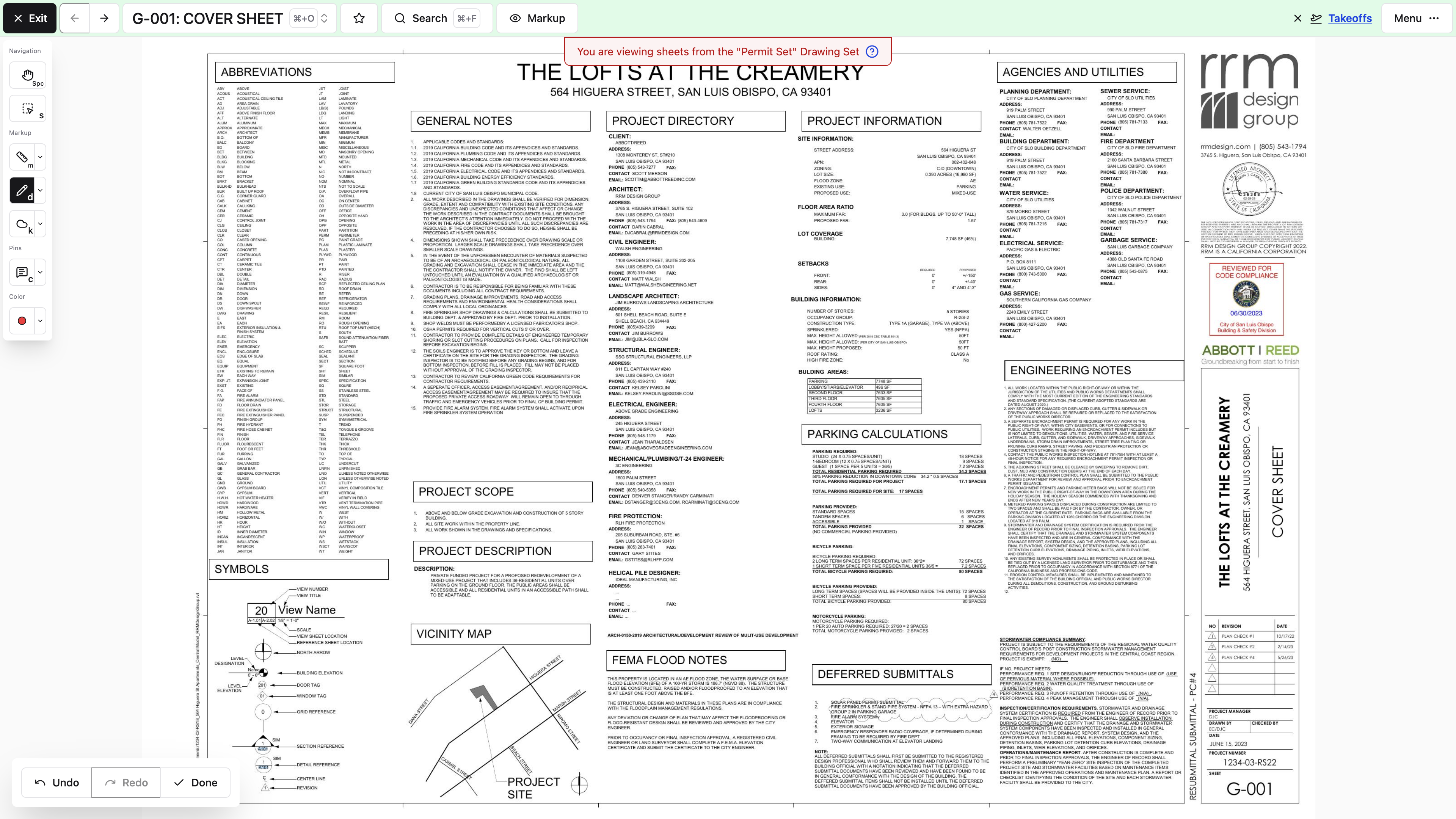
Markup never belongs to the drawing itself. It belongs to a Topic — a named bundle of markup plus the conversation about it — or to a record like an RFI that carries its own Topic. That's why your permission to mark up a sheet comes from Topics access rather than from drawing access, and it's why you'll see a save step that asks where the work should go.
Choose a markup tool
The viewer includes:
- Pencil
- Highlighter
- Text
- Lines and arrows
- Clouds
- Rectangles, circles, and ellipses
- Cross symbols
Choose a color and line thickness before drawing, or select existing markup to update it. There are three thicknesses — Thin, Normal, and Thick — and eight colors. Picking a color or size with nothing selected sets it for whatever you draw next; picking one with markup selected restyles that markup instead.
Select and edit markup
Use the Select tool to choose one or more shapes. Depending on what you've selected, you can:
- Move or resize it
- Copy, cut, and paste
- Copy or move it to another Topic
- Delete it
Standard clipboard shortcuts work on desktop, and the viewer's context menu has the same actions.
Note: Undo and Redo cover the current editing session only. Once you leave the viewer, that history is gone, so don't count on undoing your way out of something tomorrow.
Why some markup looks faded
Open a Topic and the sheet's other markup fades back. That's deliberate: with a Topic open, the markup belonging to it stays at full strength while markup from every other Topic drops to half opacity, so you can see your conversation's work without losing the surrounding context. Close the Topic and everything returns to normal.
Pins never fade. A comment, RFI, or List Item pin stays fully visible no matter which Topic is open, because you should always be able to see that a location already has something attached to it.
Faded markup isn't just a visual cue — it's also read-only. Select it and a small popover tells you which Topic it came from, with a link across to it: Open Topic for a plain Topic, or Open RFI, Open Submittal, or Open Takeoff when the markup belongs to one of those instead.
On a phone, the active tool, color, and line thickness are grouped into the bottom toolbar. The full tool list opens in a drawer, and the checkmark button at the right end of the bar returns you to Pan without deleting the markup you just created.
Finish measurements and multi-point shapes
Some tools stay active while you keep adding points. Select End or Done when the shape is complete, or switch back to Pan.
Note: If the viewer seems to keep drawing every time you try to navigate, you've still got a tool active. Check the toolbar and return to Pan or Select.
Hide vs. delete
Hide all markup gives you a clean drawing view for a moment and puts everything back when you select Show all markup. Delete removes selected markup from its Topic for good.
When you delete a pin, we ask you to confirm if that pin is attached to comments or another project record.
Save work in context
Draw anything while no Topic is open and you land in Draft Mode — a banner across the top of the viewer says so, with Save and Discard buttons on it. Your work is yours alone and isn't part of any shared record until you select Save and choose where it goes. RFI and List Item pins are the exception: they never go into Draft Mode, because they link straight to their own records instead.
Why can't I edit markup that's already on the sheet?
It belongs to a different Topic. Faded markup is read-only — select it and use the Open Topic link in the popover to switch into the conversation that owns it.
Where did my markup go after I closed the viewer?
If it was still in Draft Mode, it was never saved to a Topic. We do warn you first: leaving the viewer with unsaved draft markup raises an Unsaved Draft Markup Warning, where Save To Topic opens the save dialog, Discard and Exit throws the work away, and Cancel keeps you on the sheet.
Your observation is now on the plan where the next person will actually see it. Continue with Saving and collaborating with Topics.
Saving and collaborating with Topics
A Topic keeps related drawing markup and the conversation about it in one place, across a single sheet or a dozen, without unrelated notes getting mixed in. Think of it as a layer you and a few other people are drawing on together. How wide an audience you can share one with depends on your Topics permissions.
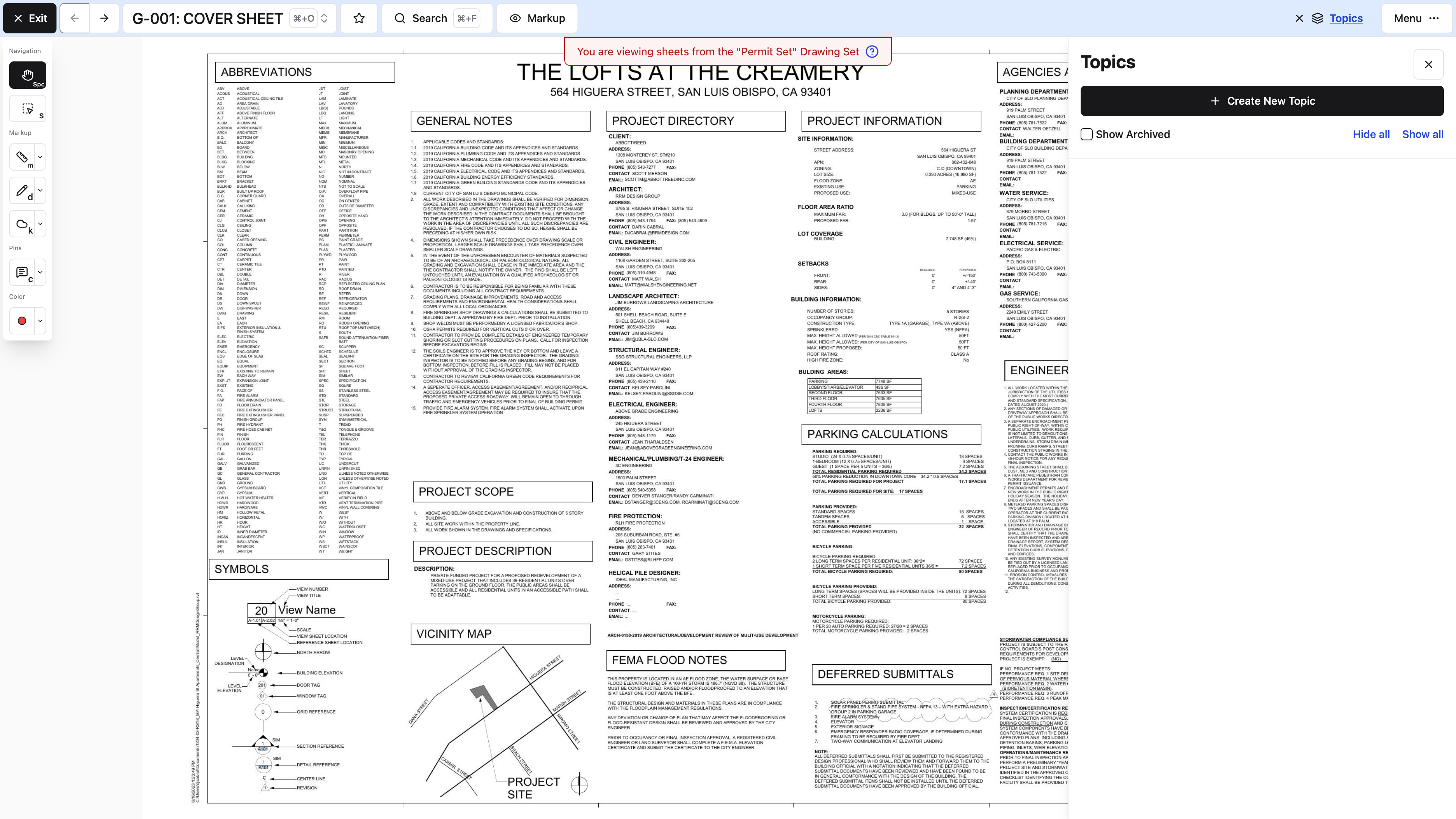
Work in Draft Mode
Draw with no Topic open and you're in Draft Mode, with a banner across the top of the viewer saying so. Your work is private and isn't part of any shared project record yet. Discard on that banner throws it away; Save opens the Save Markup dialog.
The dialog tells you what to do: "Choose an option and then click "Save Markup"". Pick one of four:
- Private keeps it to yourself. Repeated private saves collect in one personal Topic, so this is the low-friction option for sketching something out before you're ready to show anyone. It's selected when the dialog opens.
- Publish to Project shares it with everyone on the project, gathered into a single shared Topic.
- Create New Topic gives the markup its own title and its own sharing settings — the right choice when this is real coordination someone needs to respond to. Choosing it opens a title field and Who should have access to this topic?.
- Save to Existing Topic merges it into a conversation that's already running. Pick it from Select existing Topic.
Then select Save Markup. It's the same button whichever option you chose, so the option you picked is what decides where the markup lands.
Note: If Private is the only option, you don't have permission to create or publish Topics. Your markup is still saved and still yours; ask a project administrator about Topics access if you need to share it.
If you try to leave with unsaved draft markup, Constructable warns you. Saving before navigating is the safest choice.
Private and project saves get named for you. Your personal Topic is titled Jane Doe's Private Markup, with your own name in it, and the shared one is Public Markup. Those defaults are fine for scratch work and useless for anything you want found again later, so use Create New Topic with a real title once markup matters.
Only comment markup and pins can be saved into a Topic this way. RFI and List Item pins belong to their own workflows and follow their own create-or-link flow instead.
Create a useful Topic
Give the Topic a clear, specific title, such as Level 2 corridor coordination instead of Review.
A Topic can include:
- Markup on multiple sheets
- Comment threads
- Attachments and media
- Screen recordings
- Mentions and notifications
Your team can return to the marked locations and see that context together.
Choose visibility
Depending on your permissions, a Topic can be:
- Private to you or shared with specific people
- Available across your organization
- Available across the project
Start with the narrowest audience that can actually finish the work. Widening access later is easy, and it's the natural move once an internal review is ready for the broader team.
Note: Topic permissions are separate from drawing permissions. Someone can have full access to a sheet and still not see every Topic sitting on it.
Manage Topic markup
Select markup to copy or move it to another Topic, RFI, or Submittal. Copying leaves the original in place; moving changes where the markup belongs.
Archive a Topic when the work is done or has gone quiet. Archiving clears the clutter without treating the conversation as disposable.
Note: Archived Topics drop out of Select existing Topic. If a Topic you were expecting isn't there, someone probably archived it — Unarchive Topic brings it back.
The same ⋯ menu also has Delete Topic, which is not a stronger archive. Deleting removes the Topic along with the markup drawn into it and the comment Threads underneath, and nothing brings it back. Reach for it when a Topic was started on the wrong sheet, not when coordination finished. Individual comment pins work the same way: Delete Thread in a thread's menu removes that conversation permanently, while Resolve closes it and leaves it readable.
Exporting a Topic to PDF includes its drawn markup, text, and measurements, but not comment pins. That's usually what you want in a distributed set, though it does mean the PDF won't show where the conversations were. Point people at the Topic itself when the discussion is the substance.
Markup changes sync with the project as you work. We use shape locking to cut down on conflicting edits, but two people still shouldn't be editing the exact same shape at the same moment.
What's the difference between saving privately and creating a new Topic?
A private save drops everything into one personal Topic named after you — fine for scratch work. Create New Topic gives the markup its own title and sharing settings, which is what you want when someone needs to respond to it.
Why is Create New Topic missing for me?
You don't have permission to create or publish Topics. Private still works and your markup is still yours. Ask a project administrator about Topics access.
Can I move markup from one Topic to another?
Yes. Select it and copy or move it to another Topic, RFI, or Submittal. Copying keeps the original where it is.
Your markup and the conversation about it now live in the same place, on the sheet where it happened.
Measuring and calibrating drawings
You can measure lengths and areas right in the drawing viewer, which beats walking a tape for anything you're sizing up. The number is only as good as the sheet's scale, though, so check the revision and the scale before you write anything down.
Anyone who can view drawings can measure. Setting or correcting the sheet's scale is different — that changes the number everyone else gets, so it takes drawing-management access.
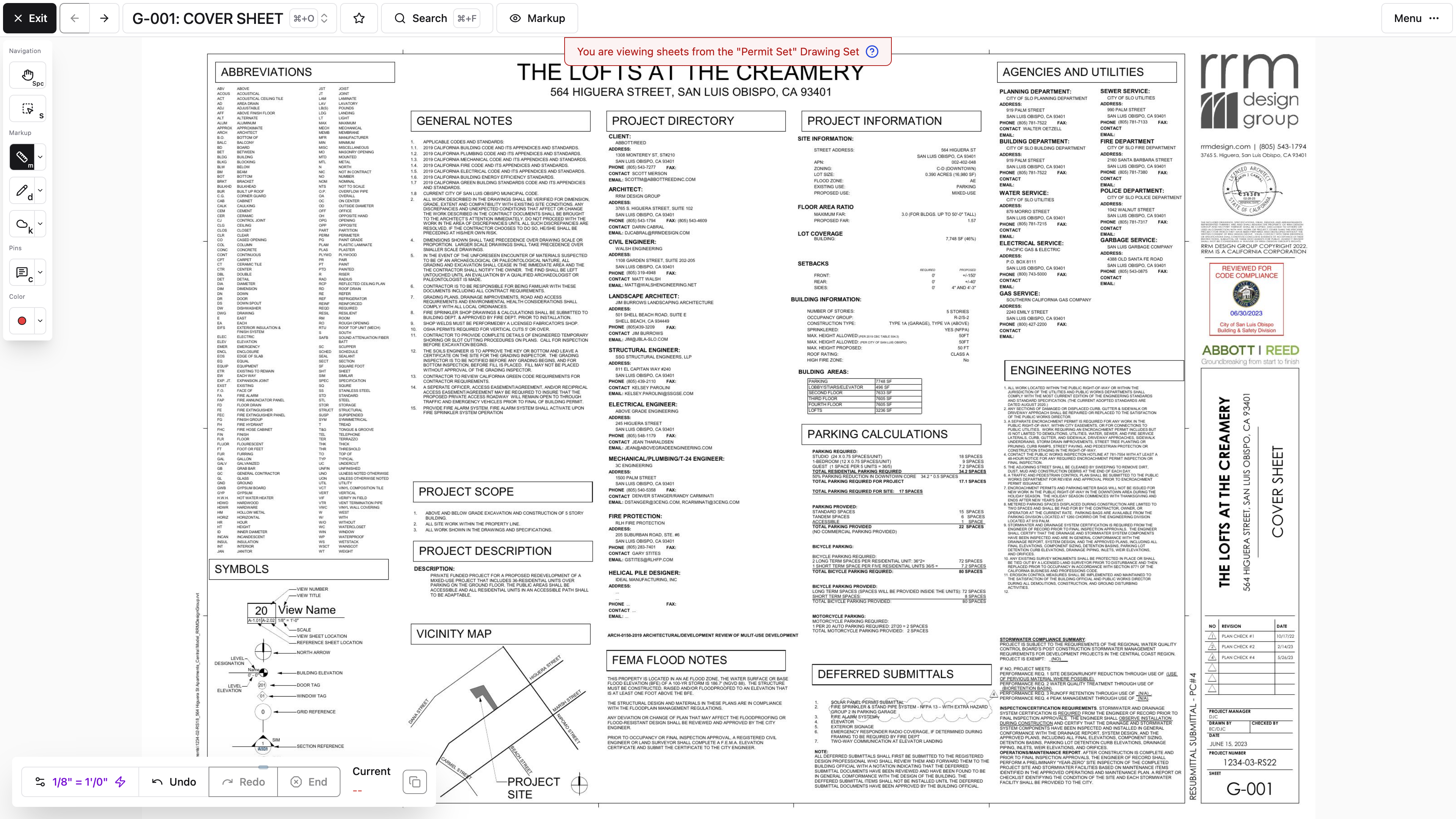
Check the scale first
We may detect a scale while processing the drawing. When it was set automatically, the measurement toolbar says so.
Before you rely on a measurement:
- Confirm that you're on the correct revision.
- Check the displayed scale.
- Measure a known dimension if one is available.
- Recalibrate if the result is off.
Note: A scale printed in a title block may apply to only one viewport. Detail sheets carrying several scales deserve extra care before you trust a number off any one of them.
Calibrate from a known distance
Open Page Scale Calibration and choose Calibrate by Line.
- Select Calibrate by Line.
- Click the two ends of a dimension you know the real-world length of.
- Enter that real-world distance.
- Save the calibration.
If the sheet is drawn to a standard architectural scale, you don't have to draw a line at all — Page Scale Calibration offers the common scales as pills, from 1/64"=1'-0" up through 1"=1'-0", plus 1"=30'-0" for civil sheets. Tap the one printed in the title block. The pills only appear while the sheet has no calibration line on it; once there is one, that line is the scale until you change it.
The dialog also offers a Round to Nearest setting — 1 inch, 1/2 inch, 1/4 inch, 1/8 inch, or 1/16 inch — which controls how measurements are reported. Once a calibration line exists, the toolbar shows Using Calibration Line, and you can nudge either end of that line with the Select tool if you placed it slightly off. Update the real-world value if you do.
Use the longest reliable known dimension you can find. Short reference distances magnify every bit of sloppiness in where you clicked.
Pro Tip: Sanity-check a fresh calibration by measuring a second known dimension before you trust any of the numbers. It takes five seconds and catches the case where you picked the wrong reference line.
Note: Calibration can't be changed while Split View is open. Close the second panel first.
Measure distance
Choose Measure and place points along the path. Multi-segment measurement is what you want for routed work — conduit, pipe, anything that turns corners — rather than straight-line distance.
The toolbar keeps a running total as you work. Select End to finish the run, then Done to leave the tool.
On phones, measurement actions collapse into compact icons in the bottom context bar. The current total stays visible, though sheet-wide and drawing-wide takeoff totals are much easier to review on a larger screen.
Measure area
Choose Area and trace the perimeter. Close or finish the polygon and we'll calculate the area.
Note: Takeoff settings may display square feet, square yards, or multiplied units. Check which unit you're looking at before that number lands in an estimate.
Precision and copied values
Measurements follow the sheet's Round to Nearest setting, and the measurement toolbar lets you copy the current measurement, the sheet total, or the drawing-wide total to your clipboard.
Treat digital measurement as a planning aid. Poor scans, an incorrect scale, and resized source PDFs all affect accuracy, so confirm critical dimensions against the contract documents or the field before anyone builds to them.
How do I know whether a sheet's scale is trustworthy?
Measure a dimension you already know. If it comes back right, the scale is good; if not, recalibrate from a known line. The toolbar also tells you when the scale was detected automatically rather than set by a person.
Can I fix a calibration line I placed slightly off?
Yes. Once a calibration line exists, nudge either end with the Select tool, then update the real-world value to match.
With the scale verified, the numbers you pull off the sheet are ones you can plan around.
Connect drawings to project workflows
Using pins, comments, and screen recordings
A pin ties an exact spot on a drawing to a conversation or a project record, so instead of writing "the third column from the north stair, roughly," you take people straight there. Which pins you get depends on what you can already reach — pinning an RFI to a sheet takes RFI access, not just drawing access.
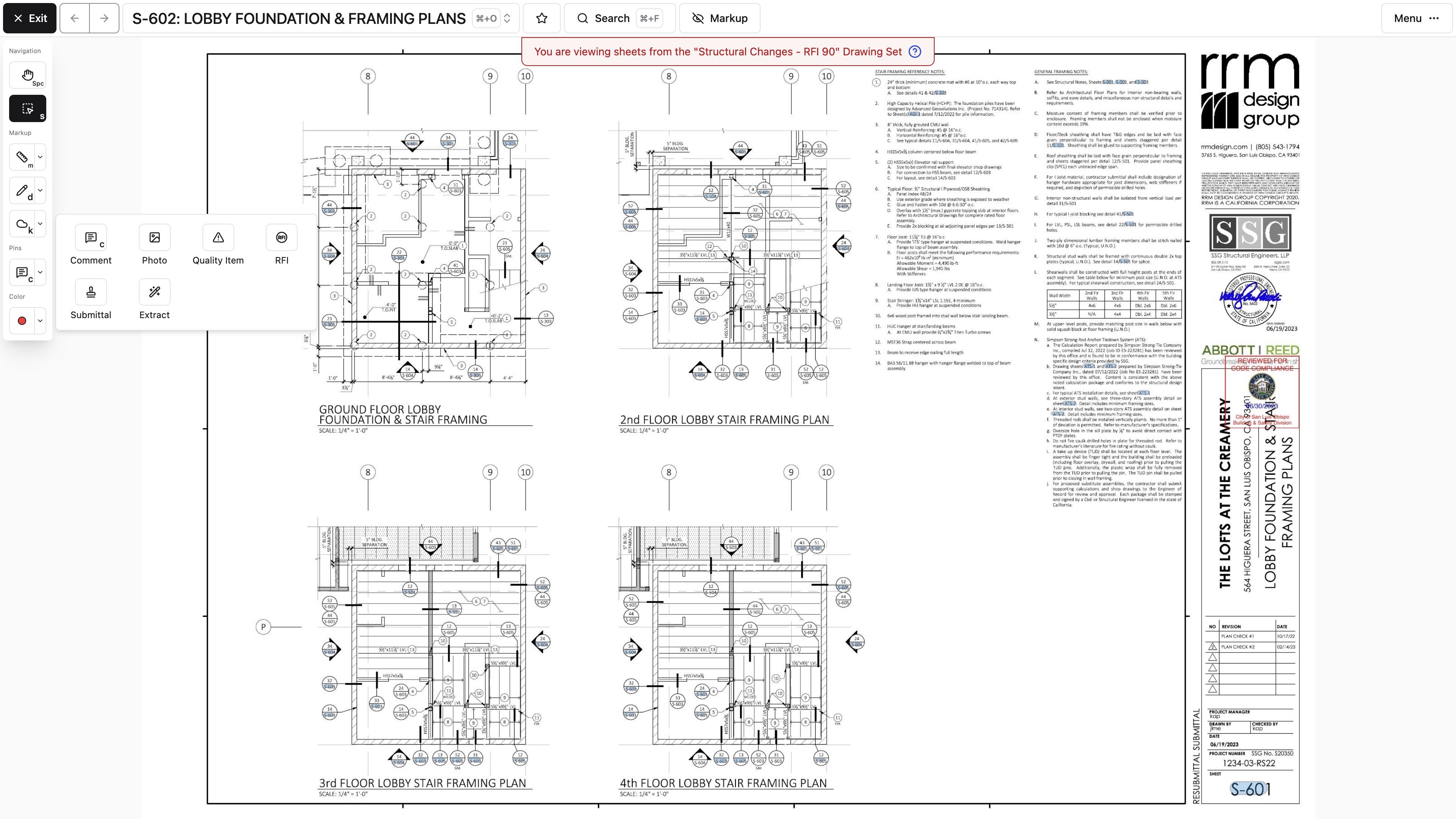
Choose a pin type
The pin tools are:
- Comment
- Photo
- List Item
- RFI
- Submittal
On desktop, Comment sits on the toolbar as its own button and the rest live behind the pin expander next to it. Extract isn't a pin at all — it sits under Selection tools with Select text, covered in Extract text from a region.
Each tool is gated on the matching permission, so your list may be shorter: Photo needs photo write access, Comment needs comment write access, and List Item, RFI, and Submittal are hidden from bidders entirely.
RFI and Submittal also depend on your organization's package. On a Field-package organization those two tools aren't offered, no matter what your role allows, because RFIs and Submittals aren't part of that package. Comment, Photo, and List Item are available on every package.
Place a pin
- Open the correct sheet and revision.
- Choose a pin tool.
- Select the exact location on the drawing.
- Choose whether to create a new record or attach one that already exists. For an RFI, those choices read Create new RFI here... and Pin existing RFI here...; the other pin types follow the same pattern with their own record name.
- Add the details the team will need.
Selecting a pin that's already placed opens a summary. From there you can read the key information, open the whole record — View Full RFI, for an RFI pin — or keep the conversation going.
Pro Tip: If the RFI already exists, choose Pin existing RFI here... instead of Create new RFI here.... You get the same marker on the sheet and one record instead of two for somebody to reconcile at closeout.
Place and manage a Photo pin
A Photo pin keeps field evidence at the exact drawing location where it was captured. Choose Photo, place the pin, then add media:
- In the native app, select Take photos to use the camera or Choose existing photos to use media already on the device.
- On web, upload a supported image or select Choose existing photo to reuse a project photo.
- On a pin that already has photos, use Take, Add, or Pick to add more. Select Edit, remove individual photos, then select Done editing when you're finished.
The pin shows how many photos it holds. Photos uploaded from a pin are kept in the system-managed Pinned album, and opening one in Photos shows the connected sheet under Sheets.
Note: Removing a photo from the pin changes that drawing connection. Deleting the pin and deleting the photo itself are separate actions, so read the confirmation before removing project evidence.
Add comments
A comment pin starts a conversation anchored to that location. It's the right tool for quick coordination that doesn't need the structure of an RFI, Submittal, or List Item.
Make the first comment do some work:
- What did you notice?
- What response or action is needed?
- Who should be involved?
Tag the people who need to weigh in — a mention is what actually notifies them.
On a phone, select Reply to open the reply dialog. Desktop keeps the reply form inline with the thread.
Record your screen
Screen recording lets you talk through a drawing while you navigate it — zooming in, pointing at things, explaining the problem out loud. The recording attaches to the relevant comment conversation.
A recording can run up to 10 minutes.
Note: If you try to leave the drawing during an active recording, we'll warn you that the recording may be discarded. Stop it and let it attach before you navigate away, or you'll lose the whole take.
The record button appears on desktop web only. Phones, tablets, and the native app don't show it, though anyone with access can still watch recordings there.
Extract text from a region
Extract, under Selection tools in the toolbar, reads a region of the sheet the way a person would rather than pulling the PDF's text layer, so it's the one to reach for on a scan or on a schedule whose columns won't come across cleanly. Click and drag around the text you want, and give it a moment — a dense schedule takes longer than a couple of notes.
If the drawing was issued as a real PDF and you only want a line or two, Select text in the same group is quicker; see Copy text off a sheet.
When it finishes, you'll see a preview plus three actions:
- Copy Rich Text takes the words and their formatting, which is what you want when pasting a schedule or table somewhere that will keep the layout.
- Copy Plain Text takes just the words.
- Clear Extraction Area discards the selection so you can try a different region.
Results depend on how clean the source PDF is, so read what came out before you paste it somewhere that matters.
Delete pins carefully
Note: Deleting a pin removes the drawing marker and may affect its connected viewer context, but it doesn't necessarily delete the underlying RFI, Submittal, or List Item. Read the confirmation message before you continue — it tells you which of the two you're about to do.
Should I use a comment pin or an RFI?
Use a comment for coordination that just needs an answer from someone on the team. Use an RFI when the question needs a formal design response and a record of it.
Can I record my screen from the app on my phone?
No. Recording is a supported-desktop-browser feature. You can watch recordings on mobile if you have access to them.
Anyone who opens that sheet now finds the conversation waiting at the exact spot it's about.
Creating and viewing RFIs from drawings
When a drawing raises a question, the drawing is where the question should start. An RFI pin keeps a formal question attached to the exact location that prompted it. You'll need RFI access on top of drawing access to use it.
Create an RFI from a sheet
- Open the relevant sheet and revision.
- Choose the RFI pin tool.
- Place the pin at the affected location.
- Create a draft RFI or connect an existing one.
- Add the RFI details and continue the normal review workflow.
Note: The pin gives the RFI drawing context; it doesn't replace a clear title and question. Plenty of people will read this RFI in an email, not in the viewer, so write it so it stands on its own.
Browse RFIs in the viewer
Open the viewer menu and choose RFIs. The side panel lets you browse the RFIs and drafts you have access to, open their details, and see the markup or comments attached to them.
Selecting an RFI can bring its drawing markup into focus. When an RFI touches several locations, its marked-up sheets are the fastest way to walk through all of them.
Draft visibility
Draft RFIs may be limited to their creator or to people with broader RFI access. Publishing drawing sheets doesn't publish an RFI, and sharing a Topic doesn't change an RFI's status.
Permissions
RFI mode requires permission to view RFIs, and creating or editing one requires the corresponding write permission. Some project roles, bidders among them, won't see the RFI pin tool at all even though they can view drawings.
Note: If you can see an RFI pin but not its details, your RFI access is narrower than your drawing access. That's a permissions difference, not a broken pin.
Does placing a pin send the RFI to anyone?
No. The pin creates or connects the record; the RFI then follows the normal review workflow from there.
Why can't I see the RFI behind a pin?
Drawing access and RFI access are separate permissions. You have enough of the first to see the marker and not enough of the second to open the record.
The question is now anchored to the plan that raised it, so whoever answers can see exactly what you were looking at.
Working with Submittals and list items on drawings
Submittal and List Item pins tie those records to the plan locations they're actually about, so the person picking the work up can see where it is rather than reading a description of it. You'll need Submittal or Punch List access on top of drawing access.
Add or open a Submittal
Reach for a Submittal pin when a drawing location relates to a product, a shop drawing, or an approval workflow.
- Choose the Submittal pin tool.
- Place the pin.
- Create a draft Submittal or choose an existing one.
- Complete the Submittal in the normal workflow.
Open Submittals from the viewer menu to browse the items, drafts, comments, and related markup you have access to without leaving the drawing.
Note: The pin is context. The official Submittal record still controls its status, assignments, and approval history, so don't treat the marker as the source of truth.
Add or open a List Item
Use a List Item pin to record an issue at the exact place you observed it.
From the pin, you can create a new item or connect one that already applies. Write enough description and attach enough media that someone can verify the condition without you standing next to them.
Open Lists from the viewer menu to browse items along with their list context.
Use the right workflow
Two questions settle almost every case. First: does something have to happen before the work can proceed? If not, it's a comment. Second: who has to make it happen?
- The architect or engineer has to answer a question about intent — RFI.
- Someone has to approve a product or shop drawing before it's bought — Submittal.
- A trade has to go back and fix something you can see — List Item.
Pick wrong and the item still exists, it just stops showing up where anyone is looking for it. A concern buried in a comment thread never lands on a log, never gets a due date, and never appears in a report.
Permissions and roles
Submittal and List Item tools show up only when your project role can reach those records. Drawing access alone isn't enough.
There's a second reason the Submittal pin can be absent, and it isn't your role: Submittals and RFIs aren't part of the Field package, so their pin tools don't appear on a Field-package organization at all. List Item is unaffected — it's there on every package.
If you need to connect a record and the pin type isn't there, ask a project administrator to look at your project permissions rather than assuming the tool is missing for everyone.
The List Item pin tool isn't in my menu. Why?
Your role doesn't have access to list items, which live under the Punch Lists permissions in project settings. Drawing access doesn't include them.
If I delete the pin, does the List Item go away?
No. Deleting a pin removes the marker from the sheet. The List Item stays on its list with its assignment, due date, and history intact — it just loses its location on the plans. Read the confirmation message before you continue, because it tells you exactly what's about to go.
The record and the location now travel together, which is usually the difference between an item that gets fixed and one that gets argued about.
Creating and exporting drawing takeoffs
Takeoffs keep your measured and counted quantities on the plans themselves, so months later you can still see exactly where a number came from. You'll need permission to add or change takeoffs, plus a verified sheet scale for anything you measure.
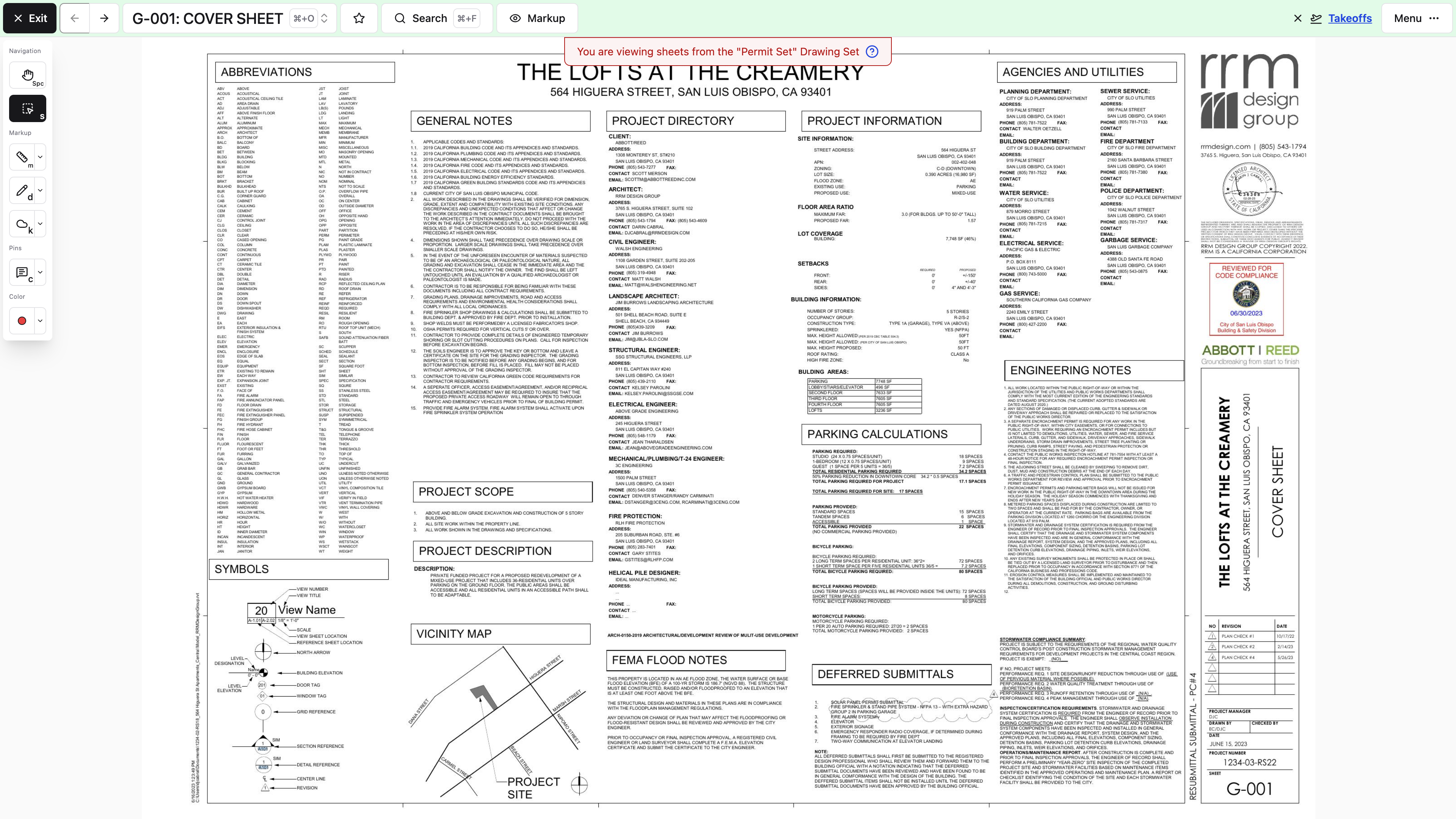
Understand the hierarchy
- A takeoff set groups a body of estimating work.
- A category groups related takeoff items.
- A takeoff item defines what is being counted or measured.
A Concrete set might hold Slabs and Footings categories, each with its own measured items.
Create a takeoff
- Open Takeoffs from the viewer menu.
- Create or open a takeoff set.
- Add a category.
- Add an item with the appropriate unit and optional multiplier.
- Select that item.
- Place quantity counts or linear and area measurements on the relevant sheets.
The Quantity tool only appears while you're in Takeoff mode.
Note: Linear and area items depend entirely on the sheet scale. Verify the calibration before you start measuring, or you'll be redoing the whole item later.
Review totals
The measurement toolbar can show:
- The current measurement
- The item's total on the current sheet
- The total across drawings
- Multiplied totals where configured
Note: Check which takeoff item is active before you place marks. A measurement filed under the wrong item produces a total that looks perfectly reasonable and is wrong — the hardest kind of mistake to catch.
Move and organize items
You can edit categories and items, or move an item into another category. Keep naming and units consistent and your exports will read cleanly for someone who wasn't there when you built them.
Export takeoffs
Takeoff sets and categories can be exported to:
- CSV for quantity data
- PDF for marked-up sheets
The PDF export offers a takeoff legend, which you turn on or off as you set the export up.
Note: Look over the selected sheets and legend items before you share an export, especially when the takeoff still holds private or unfinished work.
Takeoffs sit behind their own permission, separate from drawing access, so not everyone on the project can reach them.
Why can't I find the Quantity tool?
It only exists inside Takeoff mode. Open Takeoffs from the viewer menu and select an item first. Entering Takeoff mode also needs permission to add or change takeoffs, not just to view them.
Do my takeoff marks carry over to a new revision?
No. Takeoff marks aren't carried forward when a new revision is confirmed, so plan on redoing them against the current sheet.
Every quantity in your estimate now points back to the exact mark on the exact sheet it came from.
Work in the field and manage access
Using drawings on a phone or tablet
Standing in the building is exactly when you need the plans, so the phone and tablet experience is built for that: open current drawings, use the viewer tools, and reach connected project records without going back to a trailer.
Browse drawings
Phones, tablets, and the native app use thumbnail view for the drawing index. Sheets stay grouped by discipline, and you can:
- Switch drawing areas
- Filter by number or title
- Filter by drawing tags
- Open starred sheets
- Select a sheet thumbnail
Desktop list selection and bulk actions aren't shown on mobile. Switch to desktop web when you need to edit or download a lot of drawings at once.
Navigate the viewer
The mobile viewer gives you touch controls for:
- Pan and zoom
- Previous and next sheet
- Sheet selection
- Markup tools
- Measurements
- Pins and connected records
Phone and tablet layouts differ, so a control you know from one may live in a menu or drawer on the other.
Work in landscape
Landscape gives the drawing more room and is usually more comfortable for markup or measurement. The viewer accounts for device safe areas, so controls stay clear of notches and system bars.
Know the mobile limits
The native app has no new-tab or Split View actions, tablets included. Mobile web gives you Split View on a large enough tablet. Overlay comparison works everywhere — mobile web and the native app both.
Save side-by-side comparison and drawing administration for desktop web. Everything else — overlays, viewing sheets, placing pins, adding comments, marking up plans — travels with you.
Note: On phones, the bottom bar changes with your active tool. If the sheet selector or revision control seems to have vanished, you're still in a tool: tap the checkmark at the right end of the bar, or switch back to Pan. Viewer modes such as Topics, RFIs, Submittals, Lists, search, and markup visibility live in the ellipsis menu.
Prepare before heading to the field
If the connection out there is going to be unreliable, store the sheets you need on the device while you're still online. See Storing drawings for offline viewing.
Where did the sheet selector go?
You have a markup or measurement tool active, and the bottom bar switched to that tool's controls. Tap the checkmark at the right end of the bar, or go back to Pan.
Can I compare two sheets on my phone?
Use an overlay — it works on mobile web and in the native app. Split View needs desktop web or, on mobile web, a large tablet.
Current plans, in your pocket, with the same pins and markup everyone back at the office is looking at.
Storing drawings for offline viewing
Basements, elevator shafts, and half the sites you'll ever walk have no signal. The native app can store sheets on your device ahead of time so the plans open anyway. Do it while you're online, and make sure you're storing the latest revision.
Store a sheet
While online:
- Open the Drawings page in the native app.
- Find the sheet's thumbnail.
- Select Store on device.
- Wait for the stored indicator before going offline.
We save what the viewer needs to preview and open that sheet. Storage is one sheet at a time, so repeat this for every drawing you expect to need.
What you get is the sheet thumbnail, the quick preview, and the optimized PDF. Very deep zoom may look less detailed offline than it does on a live connection.
Confirm storage before relying on it
Pro Tip: Don't find out in the basement. Open each stored sheet once while you still have signal and confirm it loads.
Storing a sheet isn't the same as downloading a PDF into another app. The stored copy belongs to Constructable and is used by its drawing viewer.
Remove stored sheets
Select the stored indicator and confirm removal when you don't need a sheet on the device anymore. After that, loading it again takes an internet connection.
Removing the local copy doesn't delete the project drawing.
What offline storage does not guarantee
- A sheet you never stored won't open without a connection.
- A stored sheet is one specific revision. After a new revision publishes, reconnect and store the current revision before relying on it offline.
- Comments, connected records, and search need network access. After you reconnect, confirm that anything important you captured in the field has actually landed in the project.
Note: Storing a sheet freezes a revision, not a drawing. If a new revision publishes while you're out, your device keeps showing you the old one until you reconnect and store again.
Before a site walk, store the latest sheets you need and reconnect briefly so project data is current.
If a drawing will not load
When the viewer can't reach the asset it needs, it shows an offline message. Reconnect, go back to the Drawings page, and store the sheet again if it comes to that.
Can I store every drawing at once?
No. Sheets are stored individually, so pick the ones you'll actually open and store them one at a time.
Will comments and pins work offline?
No. Connected records, comments, and search all need a connection. Reconnect afterward and confirm that anything important you captured has made it into the project.
Head out knowing the plans will open whether or not the signal does.
Understanding drawing permissions and visibility
Drawing access comes in two levels — viewing published drawings and managing them — and the workflows attached to a drawing carry their own permissions on top. When a button is missing, this article tells you which permission to go look at.
Drawing viewers
People with View drawings access can:
- Open the Drawings page
- View published sheets and revisions
- Search drawings
- Star sheets
- Download or share drawings they can access
- Use viewer features allowed by their other permissions
Published drawings are the normal project-wide view. Confirmed but unpublished sheets stay out of the main index for regular drawing viewers, which is the point of publishing being its own step.
Drawing administrators
People with drawing-management access can also:
- Create and manage drawing areas
- Upload, edit, and delete drawing sets
- Review and confirm sheets
- Publish and unpublish sheets
- Edit drawing and revision details
- Manage disciplines, sheet order, and tags
By default, administrators, managers, and employees can manage drawings, while subcontractors, consultants, owners, and bidders can view published drawings but not manage drawing sets. Those are defaults — your project's own permission settings decide what's actually true, so check them before assuming something is broken.
Connected-workflow permissions
Not every viewer mode comes from the drawing permission:
- Adding comment pins requires permission to add or edit comments.
- Topics have separate view, edit, and sharing rules.
- RFIs require RFI access.
- Submittals require Submittal access.
- Lists and the items on them use the Punch Lists permissions in project settings.
- Opening Takeoff mode requires permission to add or change takeoffs.
Note: Because these are separate, you and a teammate can open the same sheet and see different pins, markup layers, and menu options. Neither view is wrong. Some roles, bidders among them, can view drawings while the RFI, Submittal, and List Item pin tools stay hidden.
Visibility is not the same as notification
Permissions decide what someone can reach. Notification settings decide what they hear about. Turning off drawing notifications doesn't take away drawing access, and subscribing to an area doesn't grant any.
Troubleshoot a missing action
When a control isn't there:
- Confirm that you're in the correct drawing area and revision.
- Check whether the sheet is published.
- Check whether the feature is available on your device or current view.
- Ask a project administrator to verify both the drawing permission and the connected workflow's permission.
Note: Resist widening someone's whole project role just to unlock one drawing tool. Change the specific permission instead — the broad change is the one you'll regret later.
A teammate can see a sheet and I can't. What's different?
Usually the drawing permission itself, or the sheet is unpublished and they're a drawing administrator. Compare access before you go looking for the file again.
I can see a pin but can't open what's behind it.
Your access to that workflow — RFIs, Submittals, list items — is narrower than your drawing access. The marker is visible; the record isn't.
Knowing which of the two permissions is missing turns "it's broken" into a one-line request for your administrator.